
Karine Honma
Personalize your Android home screen in four layers: wallpaper and colors, launcher, icons and widgets. Plus one screen most people never customize.
StandBy Mode Pro is an Android app that turns your phone into a smart display while it charges.
To personalize your Android home screen, you work on four layers: wallpaper and system colors, the launcher, icons and widgets. None of them needs root, and the first two are already in your phone’s settings.
The order is where most people go wrong. On Android 12 and newer, the system builds its colors from your wallpaper, and themed icons follow those colors. Pick icons first and change the wallpaper later, and you end up redoing the icons. So start with the image and work your way down to the details.
Since Android 12, Material You reads the main colors of your wallpaper and applies them to menus, buttons, quick settings and widgets. A photo with two or three dominant tones gives a clean palette. A busy, multicolor image often gives a washed-out one you didn’t expect.
On a Pixel, wallpaper and colors live on the same screen, according to Google’s Pixel Help:
While you’re there, check Layout. A grid with more columns shrinks the icons and leaves room for widgets. On other brands the path is different, but touching and holding the home screen usually opens the same kind of menu.
A launcher is the app that draws your home screen and app drawer. Installing a new one changes how the screen is laid out and how it responds to gestures, with no root and without deleting anything from your phone.
You may not need one. The launcher that came with your phone already handles the wallpaper, the grid, themed icons and widgets. Switching makes sense when you want icon packs or gestures the default doesn’t offer.
If you’ve read older guides, they probably recommend Nova Launcher. Nova has reached the end of its development after its acquisition by Branch Metrics, as Android Authority reports, so it won’t keep up with new Android versions. These are still being updated:
After you install a launcher, Android asks which one to use when you press the home button. To change it later, go to Settings → Apps → Default apps → Home app. Some brands put it somewhere else; searching “Home app” in Settings finds it.
A home screen looks messy mostly because of its icons: one is round, the one next to it is a square with a gradient. You can fix that with the system’s themed icons or with an icon pack.
On a Pixel, themed icons are under Wallpaper & style → Icons → Style, with three options: Default, Minimal and Create your own. The last one lets you design your own style, according to Google’s Pixel Help. Because themed icons take their color from the wallpaper, changing the image recolors them too.
Icon packs are Google Play apps that redraw every icon in one consistent set, minimal or retro, for example. Most need a launcher with icon pack support, like Lawnchair. Install the pack, then pick it in the launcher’s settings.
Expect a few holdouts. Apps that don’t have an icon in your chosen style keep their original design, and with packs this happens most with smaller or regional apps (your bank’s app is a common one).
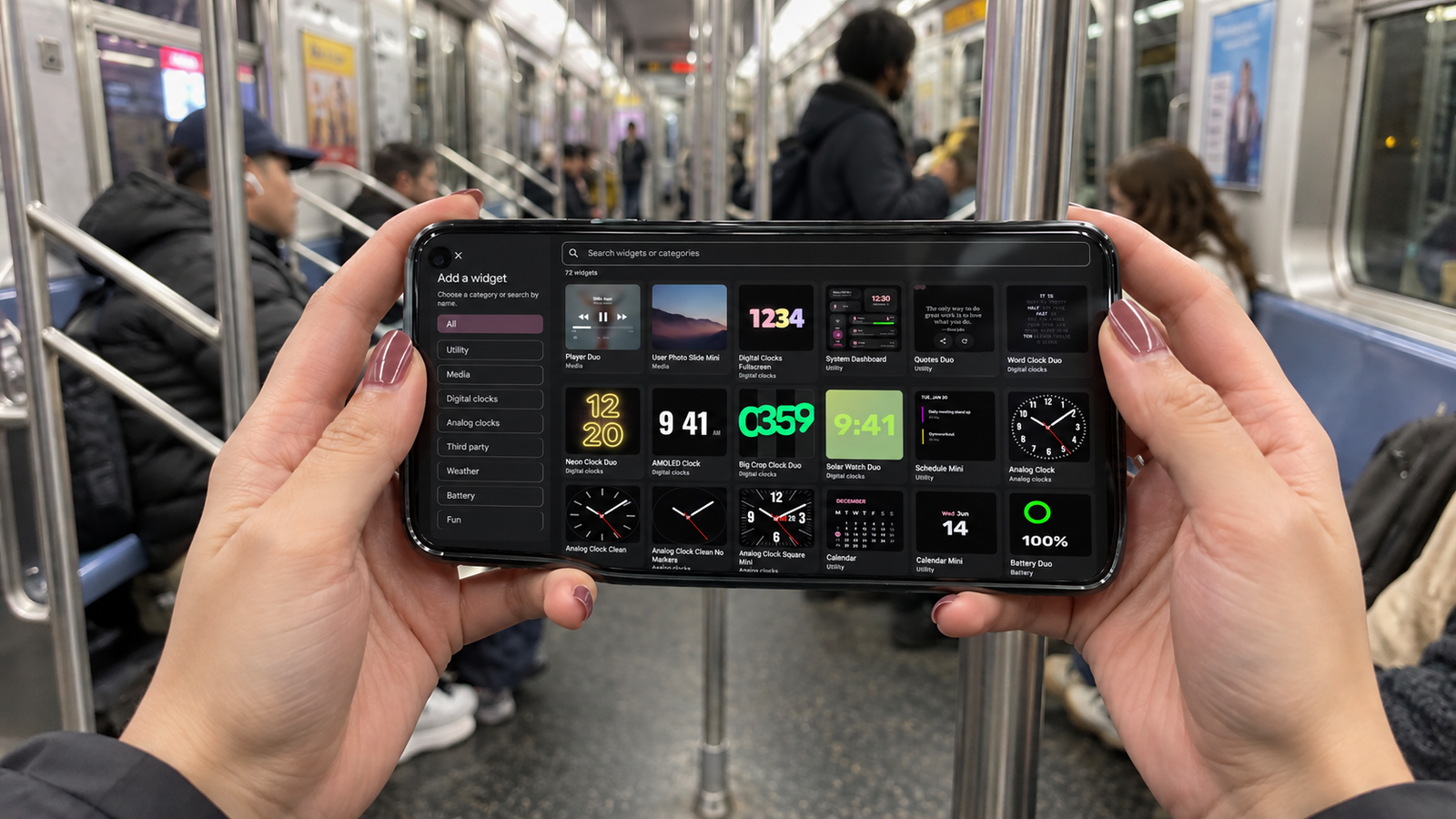
Adding a widget takes four steps, according to Android Help:
Most people start with the clock. Swapping the small default clock for a larger widget with the date or weather alongside changes the look of the screen more than any other single change. Your launcher and Android’s Clock app both include a few designs. It’s also why we built StandBy Mode Pro around clock faces: the clock is what you read first, even from across the room.
When none of the built-in widgets fit, KWGT (Kustom Widget Maker) lets you build your own or use ready-made packs from Google Play. Add an empty KWGT widget to the home screen, tap it, pick a design from an installed pack and edit it layer by layer. The free version has ads and a few limits, which the Pro key removes, according to Guiding Tech.
One thing to check before you commit to a widget: most are designed for a phone held upright. If you plan to use the same widget with the phone on its side, as on a charging screen, pick one that resizes cleanly, because it will get a wider, shorter space.
Galaxy phones handle this a little differently. Themes and icons come from Galaxy Themes, and colors come from the One UI color palette, both built into Samsung’s launcher.
For themes and icons, touch and hold an empty space on the home screen and tap Themes. The store has free and paid themes and icon sets, and you can try paid ones before buying, according to Samsung Support. The same holdout problem applies: some apps keep their original icon.
For colors, go to Settings → Wallpaper and style → Color palette and choose a wallpaper-based palette or a solid color. Then turn on Apply palette to app icons so the icons follow the same colors.
All of the above changes the screen you look at during the day. At night, or on your desk, the phone sits on the charger with the display off. With StandBy Mode Pro, that time becomes another screen to set up.
The app starts on its own when you plug in your phone and turn it sideways. What you can change there mirrors what you just did on the home screen:
If you built a KWGT widget for your home screen, put the same one in a Duo panel. The phone keeps the same look when it goes from your hand to the charger. For more ideas, see these 7 animations to personalize your Android.
Most of the app’s screens started as user suggestions. If something is missing from yours, tell us on UserJot.
Turn your phone into a smart display while it charges.

My work moves between two great passions: Content Marketing and Copywriting. I’m driven by a constant desire to keep learning and by honesty in everything I do. I’m passionate about discovering the power of words and well-crafted content. I’ve collaborated with agile startups and agencies with large client portfolios. Each experience has brought me new learnings, new challenges, and a lot of satisfaction — and coffee ☕. Here you’ll get to follow a bit of my professional journey. But if you want to know who I really am — the creative, curious, and restless Karine — let’s grab a coffee, online or in person.