
Karine Honma
Split your charging Android screen into up to 4 panels with Duo mode in StandBy Mode. Widget Rotator, third-party widgets, and full customization.
A charging phone only has one screen, but there's rarely just one thing worth seeing on it. The clock matters, sure, but so does today's weather, the next calendar event, or whatever's playing right now.
Duo mode in StandBy Mode is built around that problem. Instead of picking one widget and losing the rest, it splits the screen into two, three, or four panels, each running its own clock, widget, or app shortcut at the same time.
StandBy Mode is an Android app that turns a charging phone or tablet into a smart display. It started in 2023, right after iOS 17 StandBy launched, and it has grown a long way past a single clock since then.
This piece covers how many widgets you can fit on one screen, what each panel can show, the Widget Rotator, and how to build a layout that's actually yours.
With Duo mode. It's not Android's native lock screen widget grid. It's StandBy Mode's own charging display, which runs over the lock screen while your phone is plugged in, split into separate panels instead of one single widget.
Each panel runs independently: a world clock in one, the calendar in another, the music player somewhere else. Nothing here is limited to a single fixed pairing, so the same layout tools work whether you're setting up two panels or four.
Up to four. Duo covers two, three, or quad layouts, and the split isn't locked to an even 50/50 either, since each layout supports adjustable split ratios so one panel can take up more space than the others.
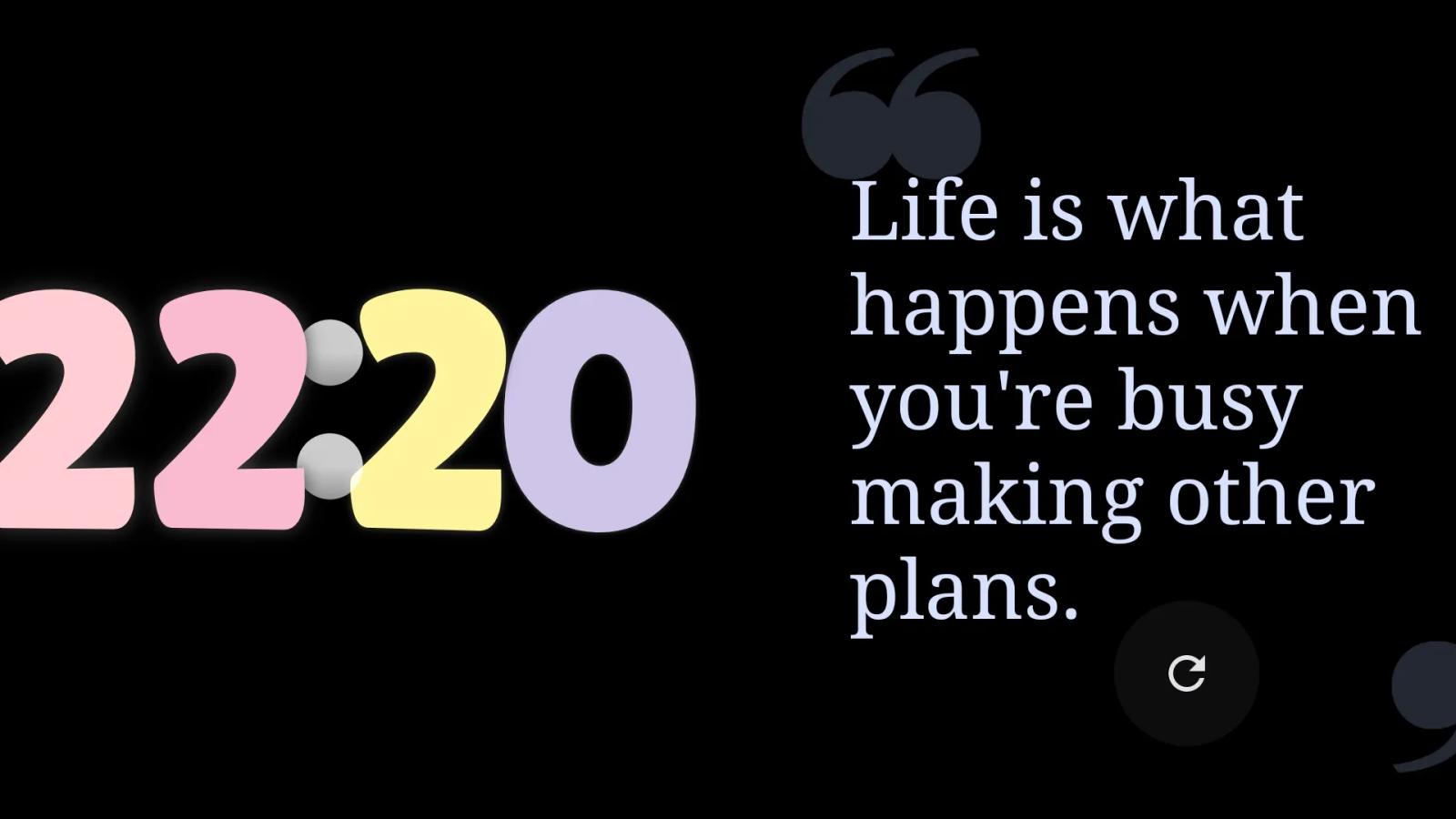
A two-panel layout suits a clock plus one widget, a colorful clock face next to a rotating quote card, for instance, instead of a full quad dashboard.
Quad is the pick when a desk or tablet dashboard needs to show the time, weather, calendar, and music controls all at once, without swiping between screens to check any of them.
Other panels swap in just as easily, including the battery-focused Charging Screen, showing percentage on its own card instead of taking over the whole display.
Yes, with the Widget Rotator. It's not a setting inside Duo. It's a widget of its own, one of the options sitting right alongside the clocks and calendars when you fill a panel. Pick it for a slot instead of a single clock or widget, then choose which widgets it cycles through.
The cycle order and the interval between switches are both adjustable, so a panel can, say, alternate between the calendar and the music player every thirty seconds, freeing up a slot for something else entirely.
Yes. Duo isn't limited to StandBy Mode's own clocks and widgets. Any regular Android home-screen widget can fill a panel too, from a weather app to a habit tracker to whatever else is already installed on your phone.
That opens Duo up past the built-in options, since a panel can run something from your calendar app, Spotify, or nearly any other app with a widget of its own. Our third-party widgets tutorial walks through adding, resizing, and swapping those out.
What You Can Customize
Every panel in Duo has its own set of controls, on top of the layout itself:
• Widget picker: a searchable list to fill each slot, instead of scrolling through every option by hand
• Layout and split ratios: two, three, or quad panels, resized to give one widget more room than the others
• Corner roundness, spacing, and zoom: adjust how tight or open the panels feel next to each other
• Panel borders: color, transparency, and thickness, for panels that blend together or stand apart
• Widget Rotator settings: cycle order and interval, for any slot set to rotate
Between the layout options and each widget's own settings, two people running the exact same four widgets can still end up with dashboards that look nothing alike.
Open StandBy Mode and swipe to Duo among the layout groups.
Long-press the screen to open customization, then tap the "+" button to fill an empty panel with a widget, a third-party app widget, or the Widget Rotator.
Tap a panel's gear icon to adjust its borders, corner roundness, spacing, and zoom, or to set up rotation if it's running the Widget Rotator.
Swipe between two, three, and quad to switch how many panels are on screen, without losing the widgets already assigned to each one.
See it in motion: rearranging widgets in Duo, or the newer drag-and-drop version of the same feature.
Most charging screens ask you to pick one thing to look at. Duo just doesn't accept that trade-off, whether that's two panels on a phone or four spread across a tablet dashboard.
Free to set up, and flexible enough that the "right" layout is really just whichever one you actually use.
Want something added to it? Drop it on UserJot (standbymodepro.userjot.com) and vote on what others have suggested — that's how most of this app got built.

My work moves between two great passions: Content Marketing and Copywriting. I’m driven by a constant desire to keep learning and by honesty in everything I do. I’m passionate about discovering the power of words and well-crafted content. I’ve collaborated with agile startups and agencies with large client portfolios. Each experience has brought me new learnings, new challenges, and a lot of satisfaction — and coffee ☕. Here you’ll get to follow a bit of my professional journey. But if you want to know who I really am — the creative, curious, and restless Karine — let’s grab a coffee, online or in person.