
Karine Honma
Spaces saves as many StandBy Mode Pro setups as you want, for home, work and bedtime. Scroll down to switch between them. See three setups to copy.
StandBy Mode is an Android app that turns your phone into a smart display while it charges.
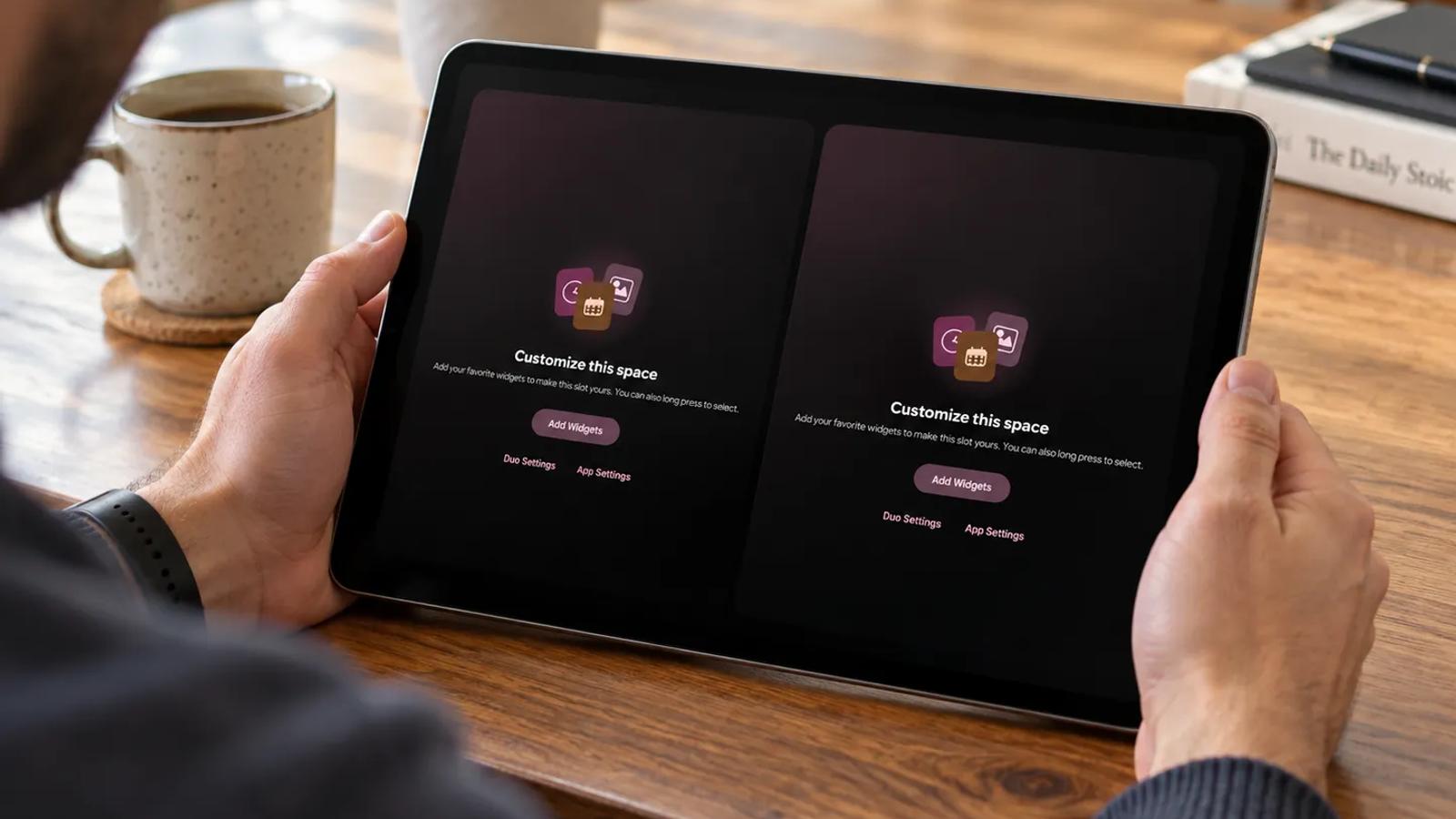
Spaces is the StandBy Mode feature that saves different setups, like one for home, one for the office and one for bedtime. To switch from one to the next, swipe left or right with three fingers.
Free users can have up to 2 Spaces, and Premium users up to 6. Build a setup once and it stays saved, so moving the phone from your desk to your nightstand no longer means rearranging the screen.
A screen that helps at your desk gets in the way next to your bed. At work, you want your next meeting and the tasks you haven’t finished. At night, you want a dark clock and nothing else.
Before Spaces, there was one Duo layout, and changing rooms meant swapping widgets by hand. It’s easy to end up with one setup that’s only right half the time. With Spaces, each room keeps its own.
There are two ways to get there.
From the settings: go to Settings → General → Screen Gestures & Controls → Open Spaces (Beta).
From the screen: swipe left or right to change from one widget group to another, then tap the Spaces button that appears.
Inside each Space, the widgets can still be adjusted through each panel’s gear icon (borders, corners, spacing and zoom).
Swipe left or right with three fingers. The app moves to the next saved Space, with no menu to open.
That’s one gesture when you get home: the meeting list you had at your desk becomes your bedtime clock before you’ve put the phone down.
On the free version you have two Spaces, so start with Desk and Bedtime. Bedtime is the one you’ll use every night, and it’s the easiest to get right. With Premium, the third below (and three more of your own) fit too.
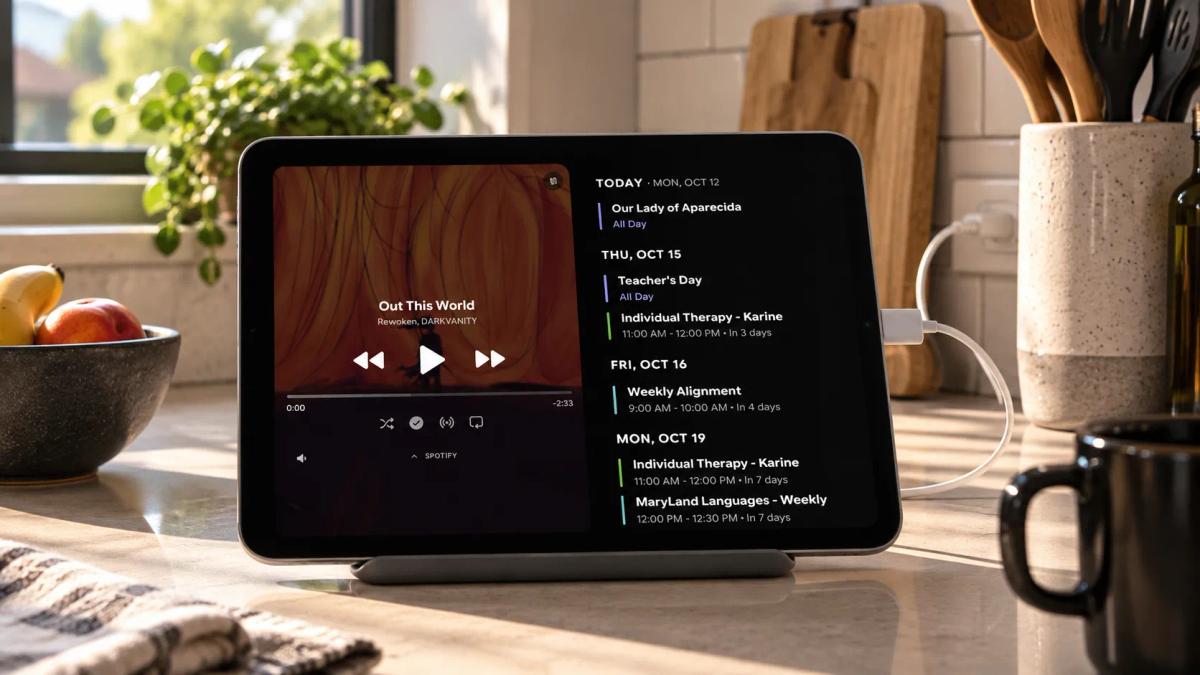
Player Duo on one side lets you pause and skip songs without unlocking your phone. Schedule Mini on the other shows your day’s agenda in a compact view. In the kitchen or living room, you can change the song and check what’s next with your hands full.
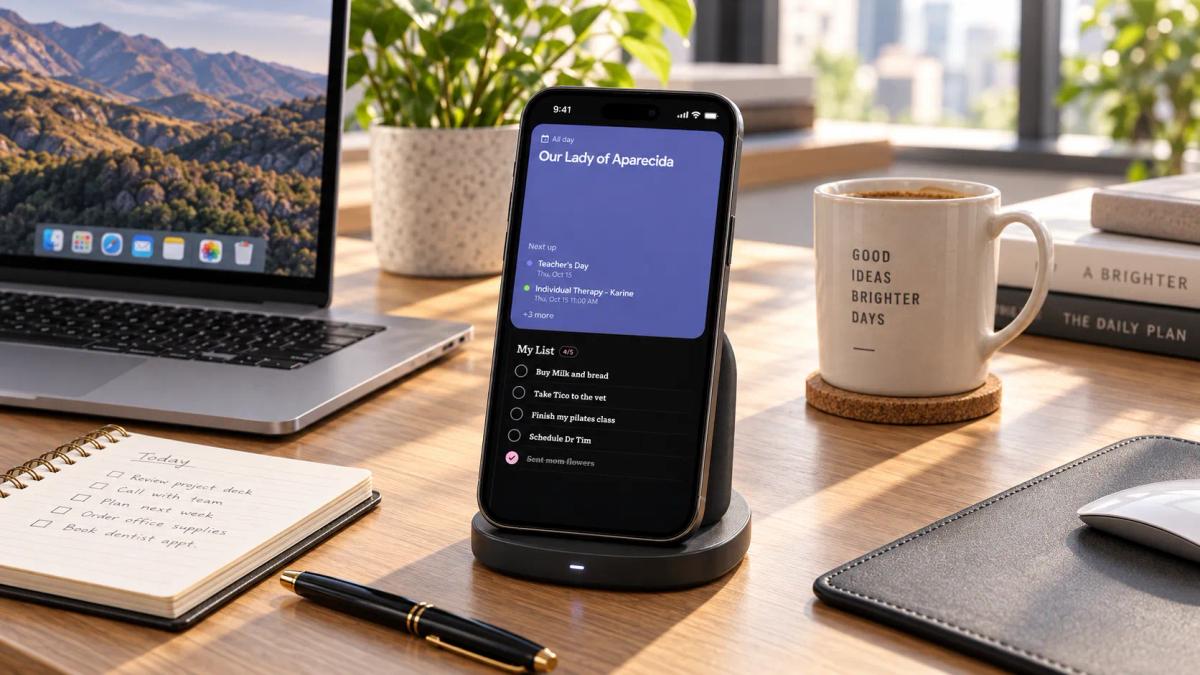
Two questions come up all day at a desk: what’s next, and what’s still open. Next Event Duo answers the first by showing your next meeting, and To Do List answers the second with today’s tasks. Next to your laptop, that’s two fewer reasons to open your calendar and your notes app.
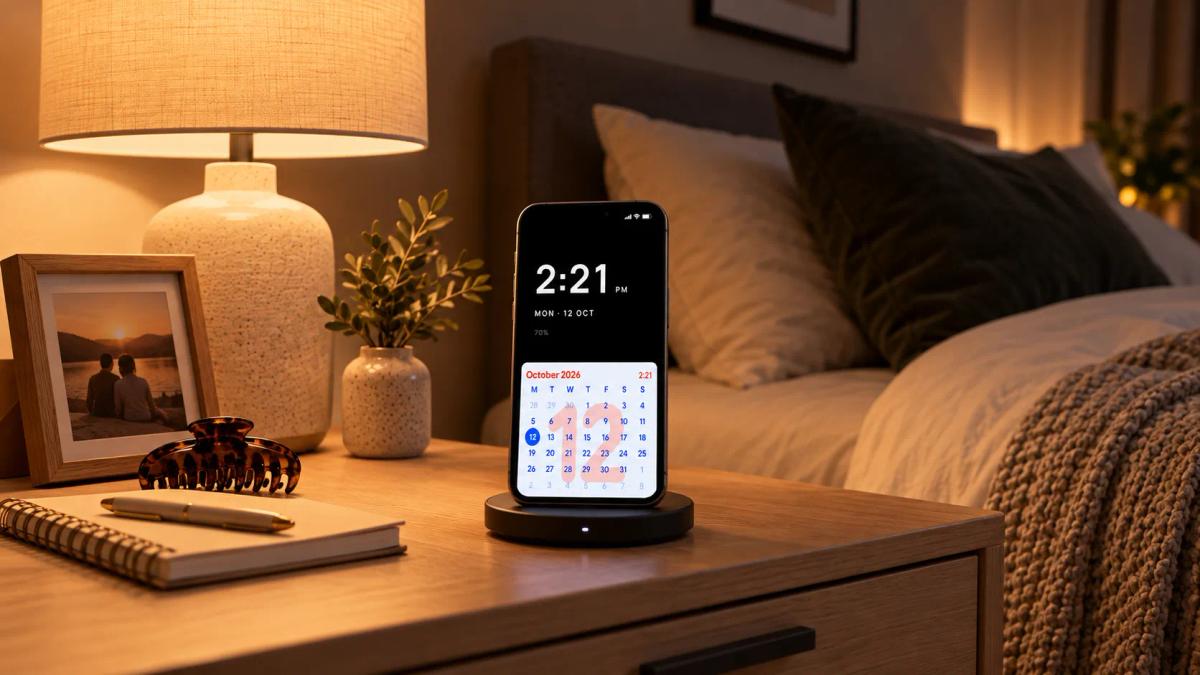
Pair a dark clock with a calendar. Sereno works well here: light gray digits on pure black, with very little of the screen lit. On the other side, use a calendar like the Striking Calendar. If you’d rather have only the clock, turn on Yoga mode and choose Sereno’s side.
For this Space, also turn on Night Mode, which adds a dim red tint so the screen doesn’t light up the room. Keep Advanced Burn-in Protection on too, since the same two widgets will stay on screen until morning.
Have an idea for a Space, or ran into a problem? Tell us on UserJot. Most of the app’s screens started as user suggestions.
Turn your phone into a smart display while it charges.

My work moves between two great passions: Content Marketing and Copywriting. I’m driven by a constant desire to keep learning and by honesty in everything I do. I’m passionate about discovering the power of words and well-crafted content. I’ve collaborated with agile startups and agencies with large client portfolios. Each experience has brought me new learnings, new challenges, and a lot of satisfaction — and coffee ☕. Here you’ll get to follow a bit of my professional journey. But if you want to know who I really am — the creative, curious, and restless Karine — let’s grab a coffee, online or in person.