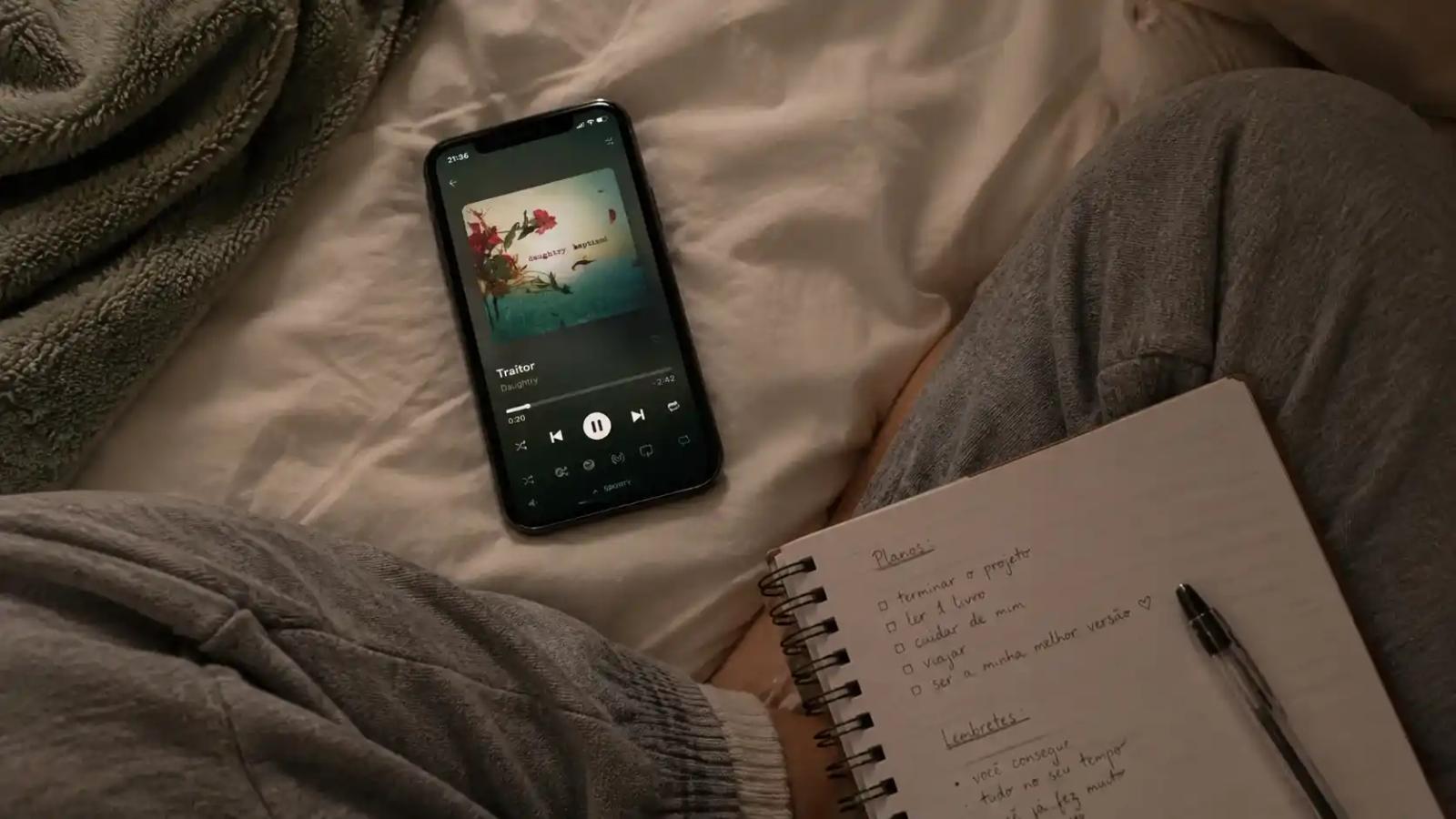
You Asked for It: Media Player With Lyrics

Karine Honma
StandBy Mode's Media Player shows song lyrics in real time and controls Spotify, YouTube Music and other apps without unlocking your phone.
Let's be honest: no one in their right mind can get through work or free time without a little music.
I use StandBy Mode's Media Player all the time. And I mean literally all the time: I have playlists for waking up, cleaning the house, working, studying, reading and even showering.
It controls whatever is playing on Spotify, YouTube Music, Apple Music and other apps, right from your charging screen. And now it shows the lyrics in real time, line by line, as the song plays.
Lyrics came to the app because users asked for them. A lot of people were already using the player on their desk or nightstand and wanted to follow along with the song without opening their streaming app or unlocking their phone.
I loved the feature, so I decided to write a whole post about it for you.
What the Media Player does
With your phone on the charger, the Media Player shows what's playing and lets you control everything without unlocking the screen:
- Play and pause.
- Skip to the next song or go back.
- Like the track.
- Turn on shuffle and repeat.
- See synced lyrics that scroll by themselves as the song goes on.
It works with the music apps you already use. You don't need to switch streaming services or sign in to anything new in StandBy Mode.
Why have the lyrics on screen
Lyrics on Spotify are tucked away: you have to unlock your phone, open the app and scroll down to them. With your phone on the desk, that means picking it up for every song. In StandBy Mode, the lyrics stay visible from across the desk while you work, cook or get ready.
And if you don't usually read the lyrics while you listen, trust me: it's a habit worth building. Besides learning to sing along, you end up discovering lines you've been singing wrong your whole life. It's liberating.
How to use the Media Player with lyrics
- Open StandBy Mode and go to Duo, or choose the player in fullscreen.
- Add the player. Long-press the screen, tap the + on a panel and pick the player from the widget list.
- Grant the permission the app asks for. To read what's playing in other apps, Android asks for notification or media access.
- Hit play in your music app. StandBy Mode recognizes the track and shows the cover art, controls and lyrics.
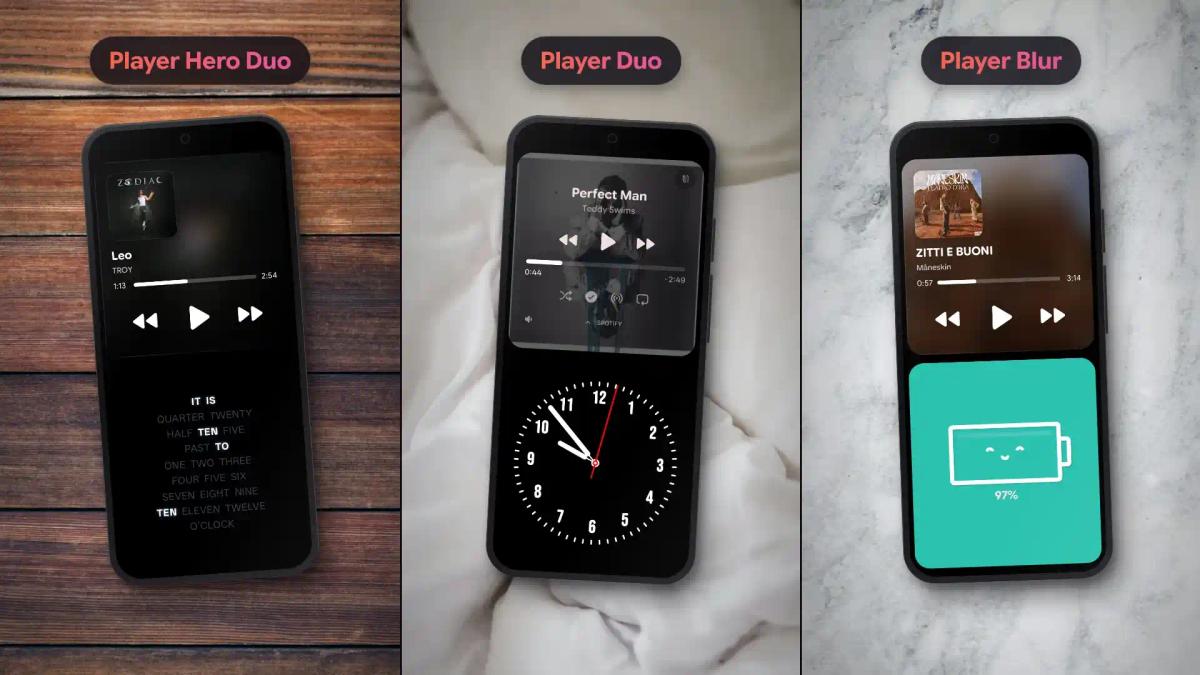
In the app, you'll find the Player Duo, the Player Duo Blur, which adds a nice blur effect to the screen, and the Player Hero Duo, which arranges the elements differently.
I'll admit I just use the plain Player Duo, because the other two are paid and I don't think they're worth upgrading for on their own. #WesleyDontFireMe
Vibes Clocks also has a music player, and you can pick videos that match your mood. It comes with lo-fi by default. I'm not a fan, but to each their own.
How to turn on the lyrics
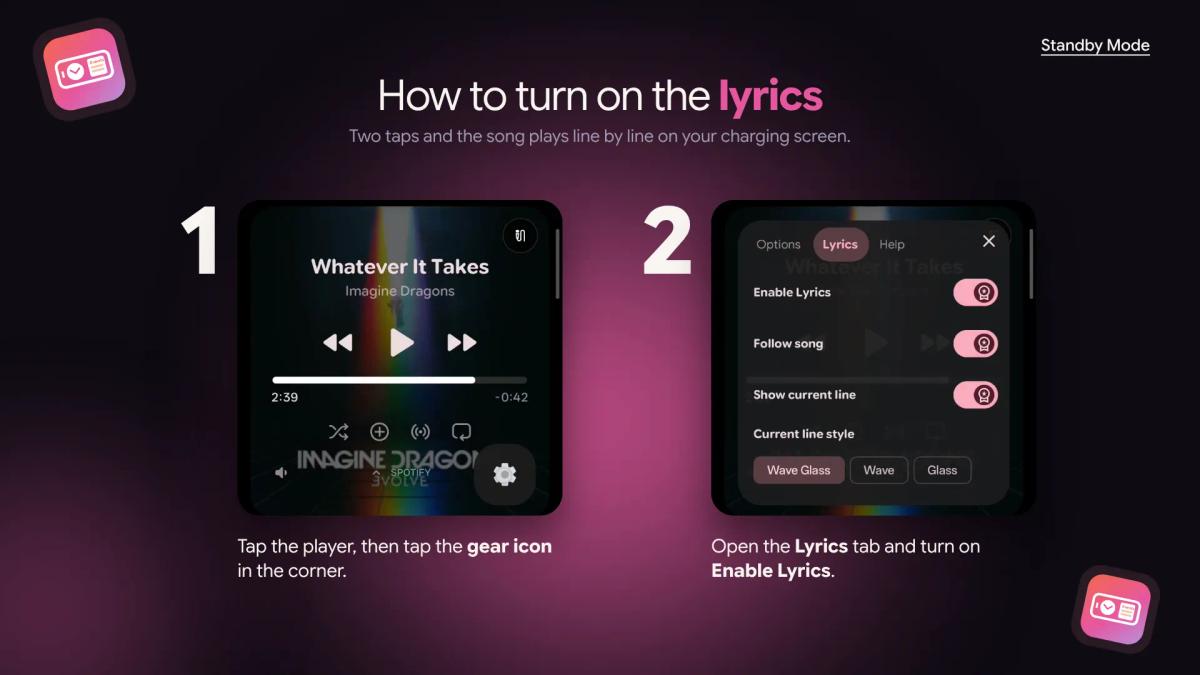
Here’s the catch: the lyrics don’t always show up on their own. If your player is showing only the cover art and the controls, you need to switch them on. It takes about five seconds:
- Tap the player. A gear icon will pop up in the bottom-right corner.
- Tap the gear to open the player settings.
- Go to the Lyrics tab, next to Options and Help.
- Turn on Enable Lyrics.
Built from what the community asks for
The Media Player with lyrics is one of the features that came from user requests, like the Dementia Clock, which was created after requests from caregivers. Wesley reads the suggestions and turns the most-voted ones into real features.
So if you have an idea for the player or any other screen in the app, leave it on UserJot. That's where the community votes on what the app gets next.
Like I said, buying Premium just to use the music player isn't the best move. The real fun is combining it with everything else the app does. Download it at the link below and explore the possibilities!

About Karine Honma
My work moves between two great passions: Content Marketing and Copywriting. I’m driven by a constant desire to keep learning and by honesty in everything I do. I’m passionate about discovering the power of words and well-crafted content. I’ve collaborated with agile startups and agencies with large client portfolios. Each experience has brought me new learnings, new challenges, and a lot of satisfaction — and coffee ☕. Here you’ll get to follow a bit of my professional journey. But if you want to know who I really am — the creative, curious, and restless Karine — let’s grab a coffee, online or in person.