How to Show 4 Widgets at Once in Duo Mode

Karine Honma
Split your Android screen into 4 panels with StandBy Mode's Duo mode: pick the layout in Duo settings, add your widgets and try ready-made combinations.
This post is going to be controversial: I don't like the app's 4-widget mode.
I love Duo mode widgets and use all 4 Spaces on both my phone and my tablet, but on my phone I'm not a fan of the 4-widget mode on a single screen. I think it looks cluttered and is hard to read.
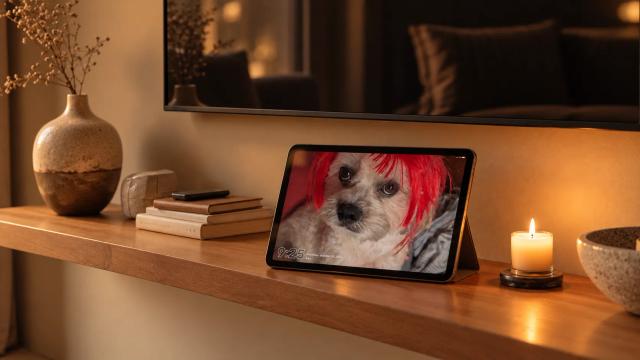
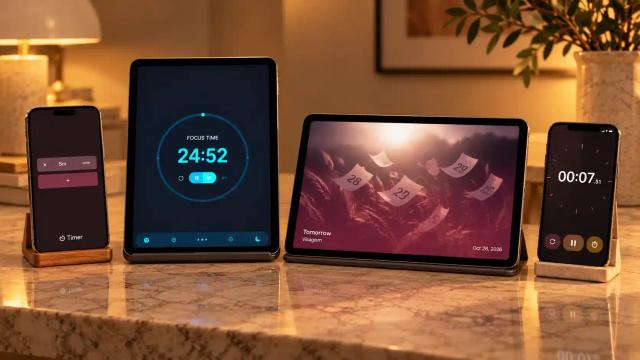
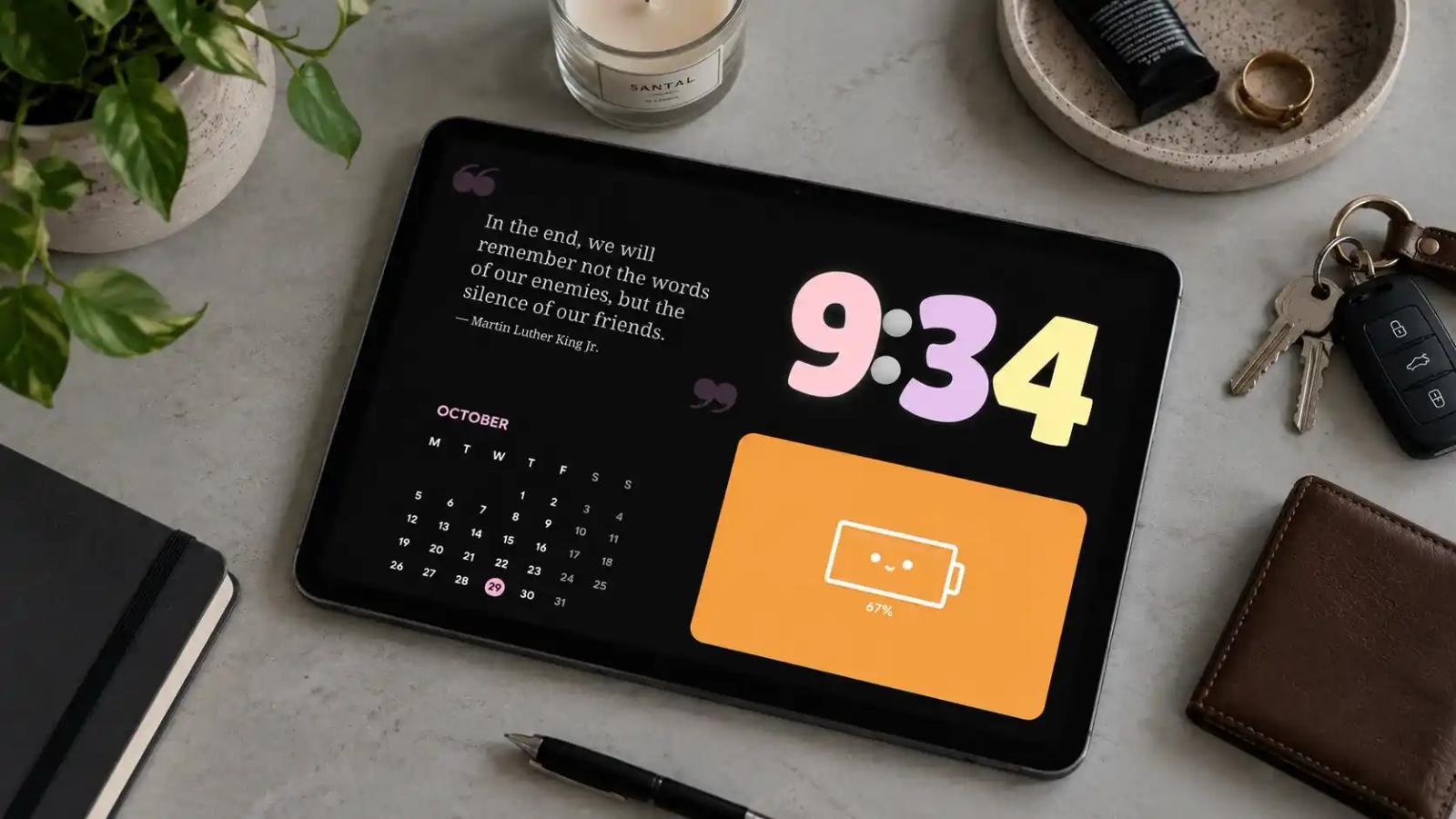
On my tablet, though, I love it: it's a way to see a lot of information at once without picking up my phone (and risking 2 hours of scrolling when I only meant to check the time).
In this post, I'll share combinations that make the most of your tablet's screen, so it saves you time and streamlines your routine.
With these tips, you won't even need to buy a virtual assistant device.
First things first: the step-by-step
- Open Duo. In StandBy Mode, swipe between screens until you reach Duo.
- Open Duo settings. Tap the pencil icon to open Duo Settings.
- Choose the layout. Among the options for how the display shows your widgets, select the four-panel one. The others split the screen into two or three.
- Fill the panels. Long-press the screen, tap the + on each empty panel and pick a widget from the list. You can search by name.
- Adjust the size. If you want one panel to be bigger than the others, change the split ratio. A large clock next to three smaller widgets usually works better than four equal parts.
When you switch layouts, the widgets already in your panels stay in place. You can try the four-panel layout and go back to two panels without redoing anything.
What to put in each panel
Each panel can hold:
- A StandBy Mode widget, like clocks, weather, calendar, music player or timers.
- A third-party widget, like Spotify, Gmail or a KWGT layout.
- The Widget Rotator, which cycles several widgets in the same panel. With it, four panels can show more than four widgets.
Tap the gear icon on each panel to adjust the border (color, transparency and thickness), corner roundness, spacing and widget zoom.
4-widget combinations that work
At your desk: A clock, Next Event Duo, To Do List and Pomodoro. Your next meeting, today's tasks and your focus block, all on the same screen.
In the kitchen: A clock, weather, Timer Duo and a music player. You cook with the timer in sight and switch songs without touching your phone with messy hands.
To track habits: Sober Counter, Tally Counters, To Do List and a clock. The combinations are in the post on how to track daily goals.
To see everything at once: A clock, weather, calendar and music controls, the combination the Duo post itself uses as its four-panel example.
Tips to keep 4 widgets from turning into a mess
Use a tablet if you can. On a phone, four panels are too small to read from a distance. On a tablet, each panel has plenty of room.
Make one panel bigger. Your eye needs a starting point. A clock that's bigger than the other three panels gives it one.
Save it as a Space. If the four-panel layout is just for your desk, save it as a Space and keep a two-panel layout for your nightstand. You switch between them by swiping three fingers to the side.
If, after all this, you still feel a widget is missing, now's your chance: suggest it on UserJot. That's where the community votes on what the app gets next.
Go ahead and install the app using the link below, and good luck setting up your Spaces!

About Karine Honma
My work moves between two great passions: Content Marketing and Copywriting. I’m driven by a constant desire to keep learning and by honesty in everything I do. I’m passionate about discovering the power of words and well-crafted content. I’ve collaborated with agile startups and agencies with large client portfolios. Each experience has brought me new learnings, new challenges, and a lot of satisfaction — and coffee ☕. Here you’ll get to follow a bit of my professional journey. But if you want to know who I really am — the creative, curious, and restless Karine — let’s grab a coffee, online or in person.