Good Lock and StandBy Mode: What Each One Customizes on Your Samsung

Karine Honma
Good Lock customizes your Samsung's interface; StandBy Mode takes care of the screen while your phone charges. See what each one does and how to use both together.
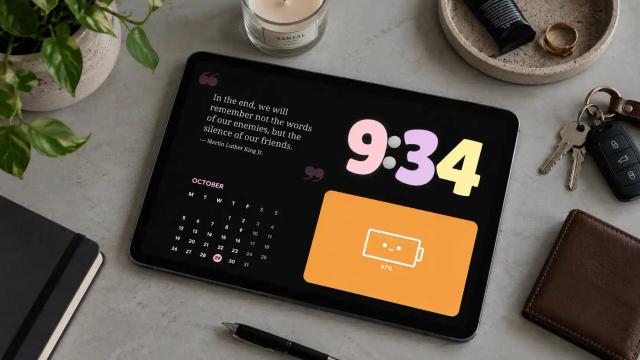
Good Lock is Samsung's own customization app. It changes the One UI interface: the lock screen, Always On Display, quick panel, keyboard and navigation bar. StandBy Mode takes care of a different screen, the one that shows up while your phone is charging (though that's not the only way to use it: I keep the app open at different times throughout my day).
That's why the comparison I'm about to make isn't about picking a winner: there's room for both, since on a Galaxy they complement each other well, and on any other Android, Good Lock isn't available, but StandBy Mode is.
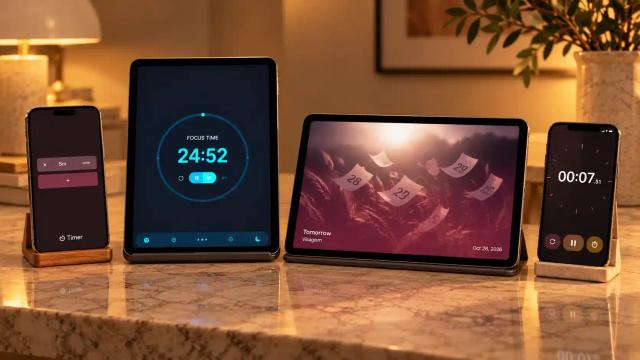
I have a tablet I use for studying and for meetings with myself (always good to check whether life is heading where I want it to), and I love using Good Lock's Routines+ module with StandBy Mode's Pomodoro.
What Good Lock is
Good Lock is a collection of Samsung modules that you install separately, only the ones you want to use. Think of it as a store of extra features for your Galaxy.
To install it, search for "Good Lock" in the Galaxy Store, install it, open the app and download the modules from inside it, according to Samsung. Since its global launch in 2025, it's also listed on the Google Play Store, according to SamMobile. These are the most popular modules for visual customization:
- LockStar: changes the lock screen and Always On Display, with clocks, widgets and stickers.
- ClockFace: creates clock styles for the lock screen and Always On Display.
- QuickStar: adjusts the status bar and quick panel.
- Home Up: customizes the One UI home screen, folders and gestures.
- Theme Park: creates themes from your wallpaper colors.
- NavStar: changes the navigation bar or gestures.
- Keys Cafe: changes the layout, size and style of the Samsung Keyboard keys.
Which modules are available depends on your model and One UI version.
Where StandBy Mode comes in
StandBy Mode extends the customization you already do with Good Lock to one more screen: your charging screen.
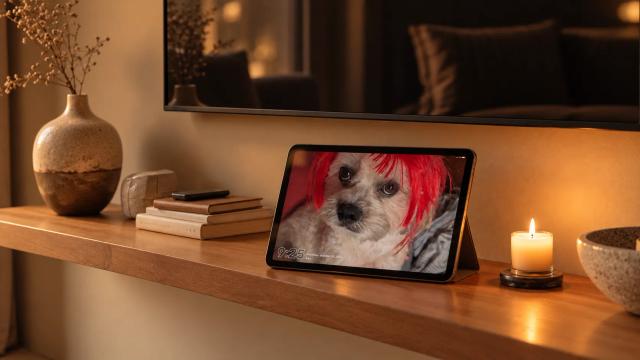
StandBy Mode doesn't touch the system interface. It opens by itself when your phone starts charging, through Quick Launch, and turns the screen into a display with clock options, utility widgets, calendars, weather, timers and other features.
It runs on any Android 7.0 or later, from any brand.
Changing the lock screen clock style
If you came here looking for how to change the lock screen clock style, Good Lock is the way to go on a Galaxy. ClockFace and LockStar offer more styles than the default One UI editor, and the clock stays on your lock screen all the time.
The limit is size. The clock still shares space with notifications and shortcuts, so you can't read it from across the room. StandBy Mode solves this when your phone is charging (or whenever you leave the app open): it opens over the lock screen with a full-screen clock and, with Auto Close on, closes when you unplug the cable.
How to use both together on a Galaxy
A setup that gets the best out of each one:
- During the day, Good Lock. Use LockStar or ClockFace to set up your lock screen and Always On Display your way.
- On the charger, StandBy Mode. Turn on Quick Launch under Settings > App Launch so the app opens by itself when you charge.
- Lift StandBy Mode's battery restrictions. One UI puts apps to sleep in the background, which can stop Quick Launch from working. The step-by-step is in the post on StandBy Mode on Galaxy.
If you don't use Samsung, Good Lock is off the table. For your home screen, a launcher does part of that job, as the post on how to personalize your Android home screen shows. For your charging screen, StandBy Mode works the same on any brand.
Wesley is always looking for new ideas to add to the app, so if there's a setting or widget in Good Lock that would be cool to bring to StandBy Mode, feel free to share your idea on UserJot. That's where the community votes on what the app gets next.
Start customizing your phone by downloading StandBy Mode here:

About Karine Honma
My work moves between two great passions: Content Marketing and Copywriting. I’m driven by a constant desire to keep learning and by honesty in everything I do. I’m passionate about discovering the power of words and well-crafted content. I’ve collaborated with agile startups and agencies with large client portfolios. Each experience has brought me new learnings, new challenges, and a lot of satisfaction — and coffee ☕. Here you’ll get to follow a bit of my professional journey. But if you want to know who I really am — the creative, curious, and restless Karine — let’s grab a coffee, online or in person.