3 Ways to Track Daily Goals

Karine Honma
Combine Sober Counter, Tally Counters and To Do List in StandBy Mode Pro to keep a streak, count daily habits and finish tasks without opening an app.
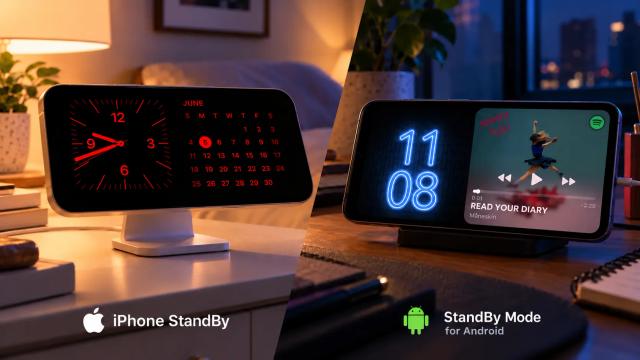
StandBy Mode Pro is an Android app that turns your phone into a smart display while it charges.
To keep your goals in view with StandBy Mode Pro, combine three widgets: Sober Counter for a habit you’re quitting, Tally Counters for something you want to do more of, and To Do List for tasks you need to finish. Put them in your Duo layout and your progress stays on the screen next to the clock, where you’ll see it without opening an app.
They work as a set because goals aren’t all measured the same way. Quitting something is measured in days without it. Building a habit is measured in how many times you did it. A task is either done or it isn’t. Each of these widgets handles one of those, so pick by how your goal is measured.
Sober Counter
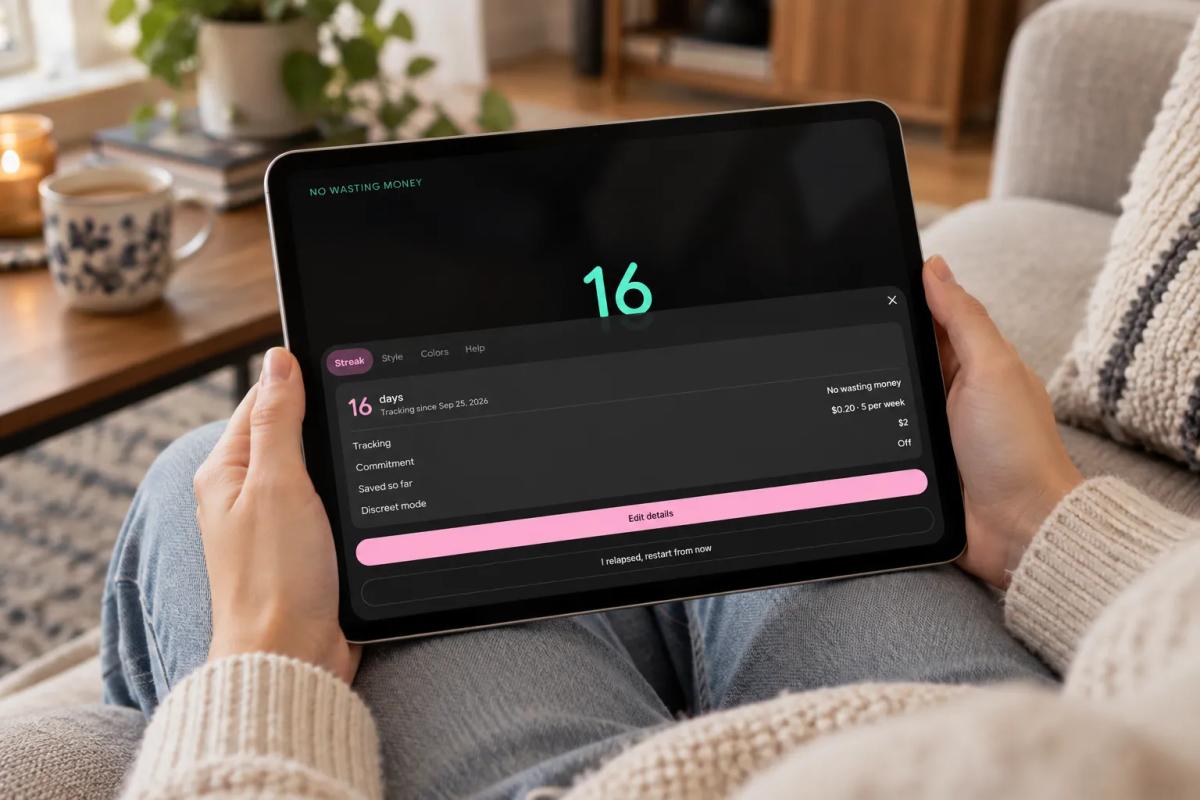
For something you’re stopping. Sober Counter counts the days since you last did it, with the number of days large in the center, hours and minutes below, and a progress bar toward your next milestone. Despite the name, it works for any habit you want to drop: drinking, smoking, late-night delivery, impulse buys.
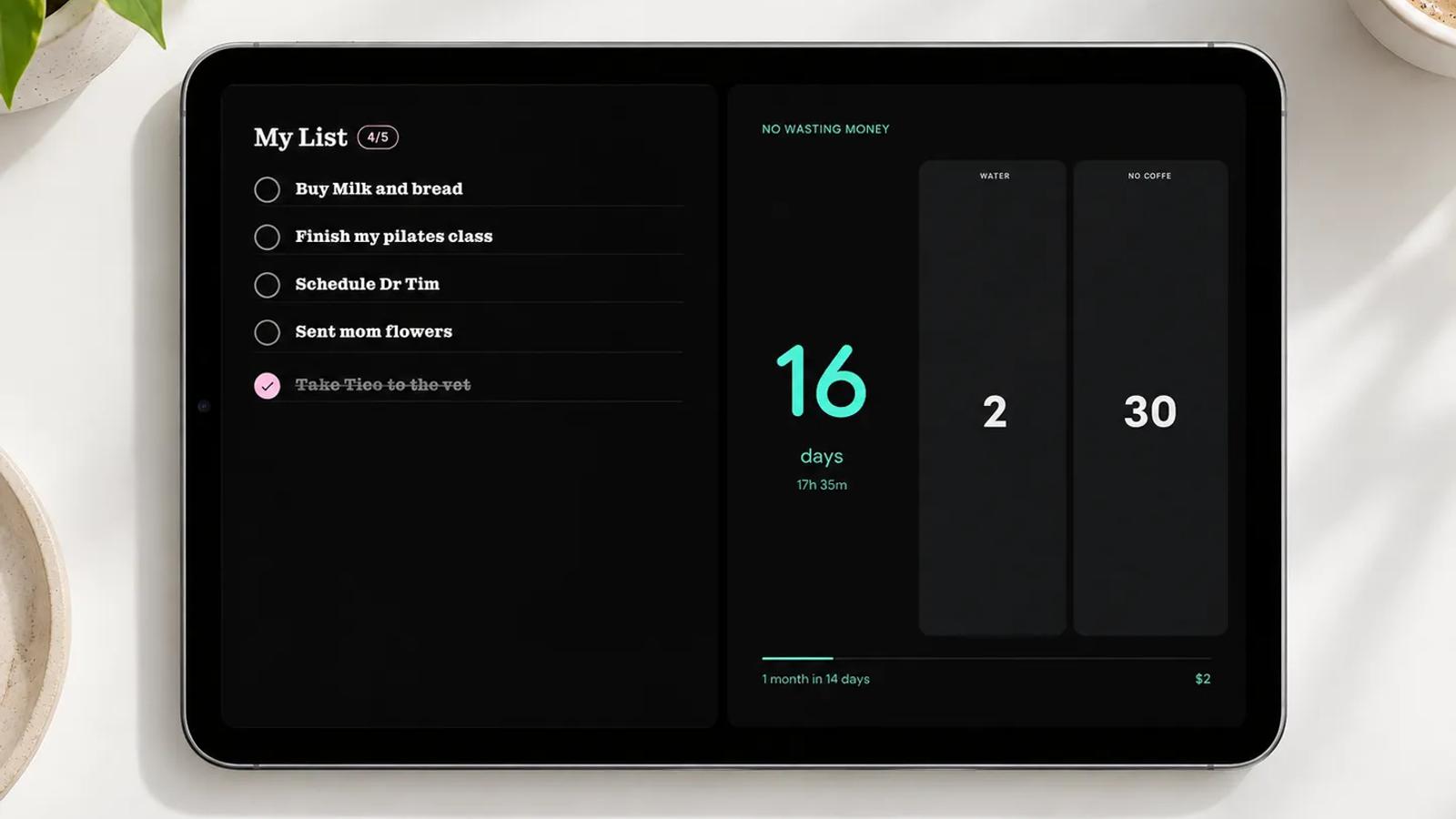
The widget’s settings have four tabs: Streak, Style, Colors and Help. Streak shows how many days you’ve kept it up and the date you started, plus what you’re tracking and your commitment. Say your goal is “No wasting money” and the commitment is $0.20, 5 times a week. After 16 days, Saved so far reads $2. On a day when 16 doesn’t feel like much, the money is a second number to look at.
If you slip, tap I relapsed, restart from now. The count starts again from that moment, with no dates to fix by hand. Resetting is part of using it.
Tally Counters
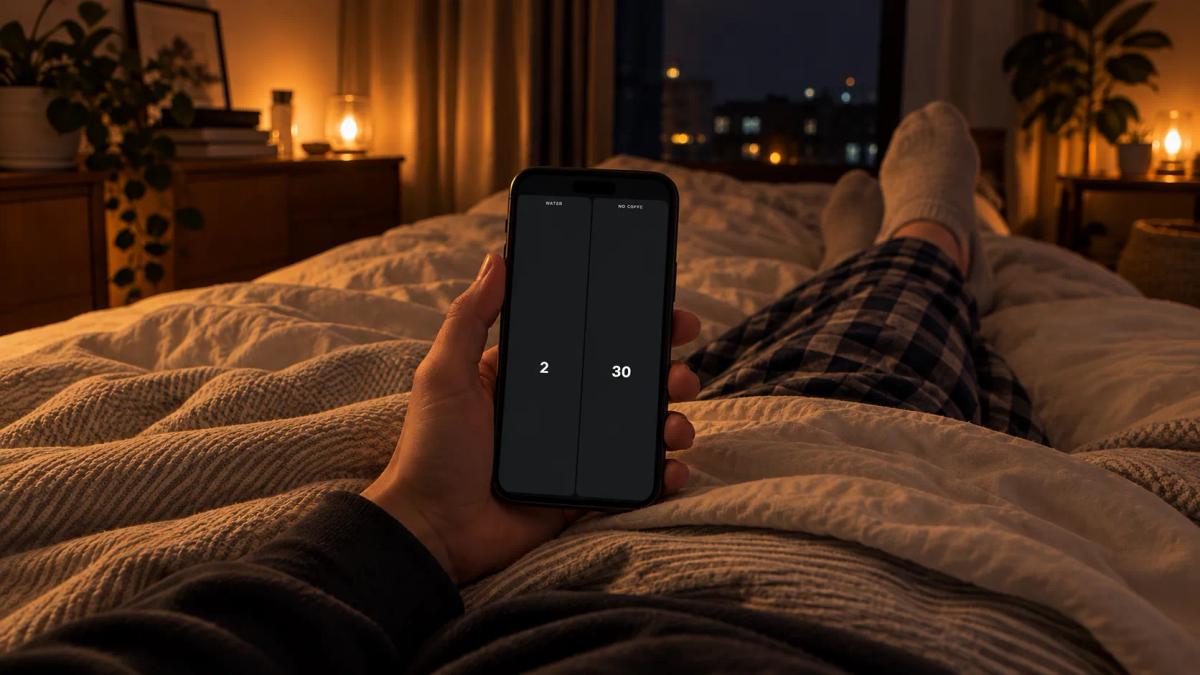
Water 6, Coffee 3, Push-ups 128, Pages 47: that’s a day in four numbers. Tally Counters puts up to four named counters side by side, “for water, coffee, reps, or anything you count,” as the app describes it.
Name each counter after its unit. “Pages” tells you something when it reads 47; “Reading” doesn’t. The counters don’t all have to go up, either. In that day, three numbers should be high and one (Coffee) should stay low. The widget treats them the same, so you decide which is which.
To Do List
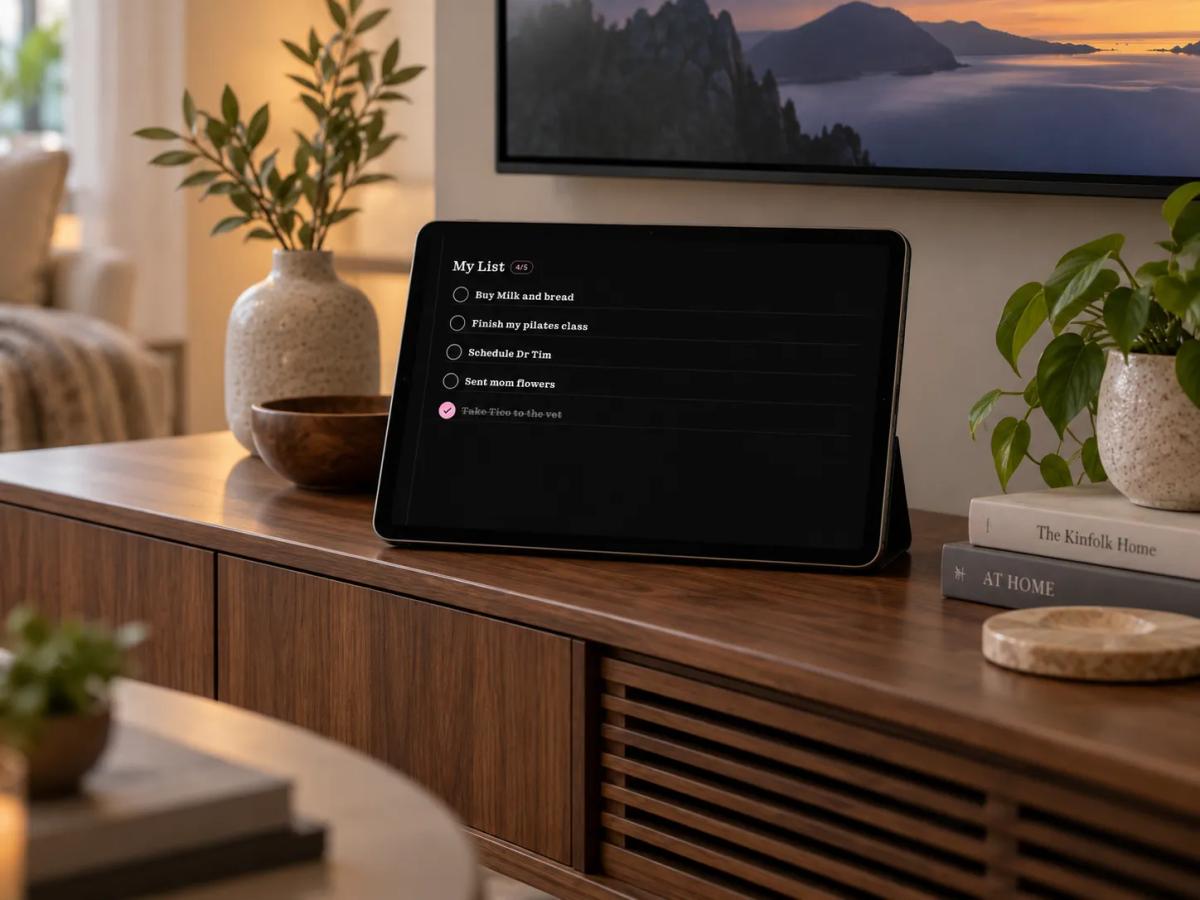
“Finish my pilates class” is a task. The 128 push-ups on the counter are the habit it feeds. To Do List is where goals like that turn into something you can check off today.
It shows a titled list with a check circle next to each task and, beside the title, a count of what’s open (like 4/5). [CONFIRMAR: se o 4/5 mostra tarefas abertas sobre o total] Checked tasks get a pink check and stay on the list, crossed out, so by evening you can see what you got done.
To change the list, tap the pencil icon in the widget’s corner. Keep it to what fits on screen. If the list needs scrolling, part of it belongs to tomorrow.
How to Keep All Three on Screen
Duo shows two panels, and you have three widgets. The simplest fix is the Widget Rotator, which lets you automatically rotate widgets in a single panel. Put Sober Counter, Tally Counters and To Do List in the rotator on one side, and a clock on the other. Each goal gets its turn at full panel size, and the time never leaves the screen.
To add the widgets to your Duo layout:
- Go to the app.
- Open Duo.
- On an empty panel, tap Add Widgets, or long-press the panel.
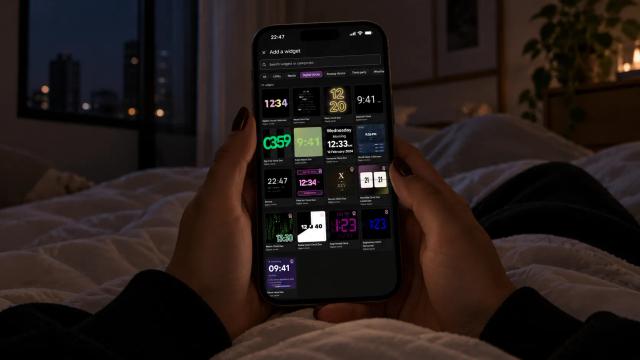
- Find the widget. Tally Counters and Widget Rotator are under Utility, and the search bar finds the others by name.
- Tap Add widget.
Have an idea for another goal widget? Tell us on UserJot. Most of the app’s screens started as user suggestions.
Turn your phone into a smart display while it charges.

About Karine Honma
My work moves between two great passions: Content Marketing and Copywriting. I’m driven by a constant desire to keep learning and by honesty in everything I do. I’m passionate about discovering the power of words and well-crafted content. I’ve collaborated with agile startups and agencies with large client portfolios. Each experience has brought me new learnings, new challenges, and a lot of satisfaction — and coffee ☕. Here you’ll get to follow a bit of my professional journey. But if you want to know who I really am — the creative, curious, and restless Karine — let’s grab a coffee, online or in person.