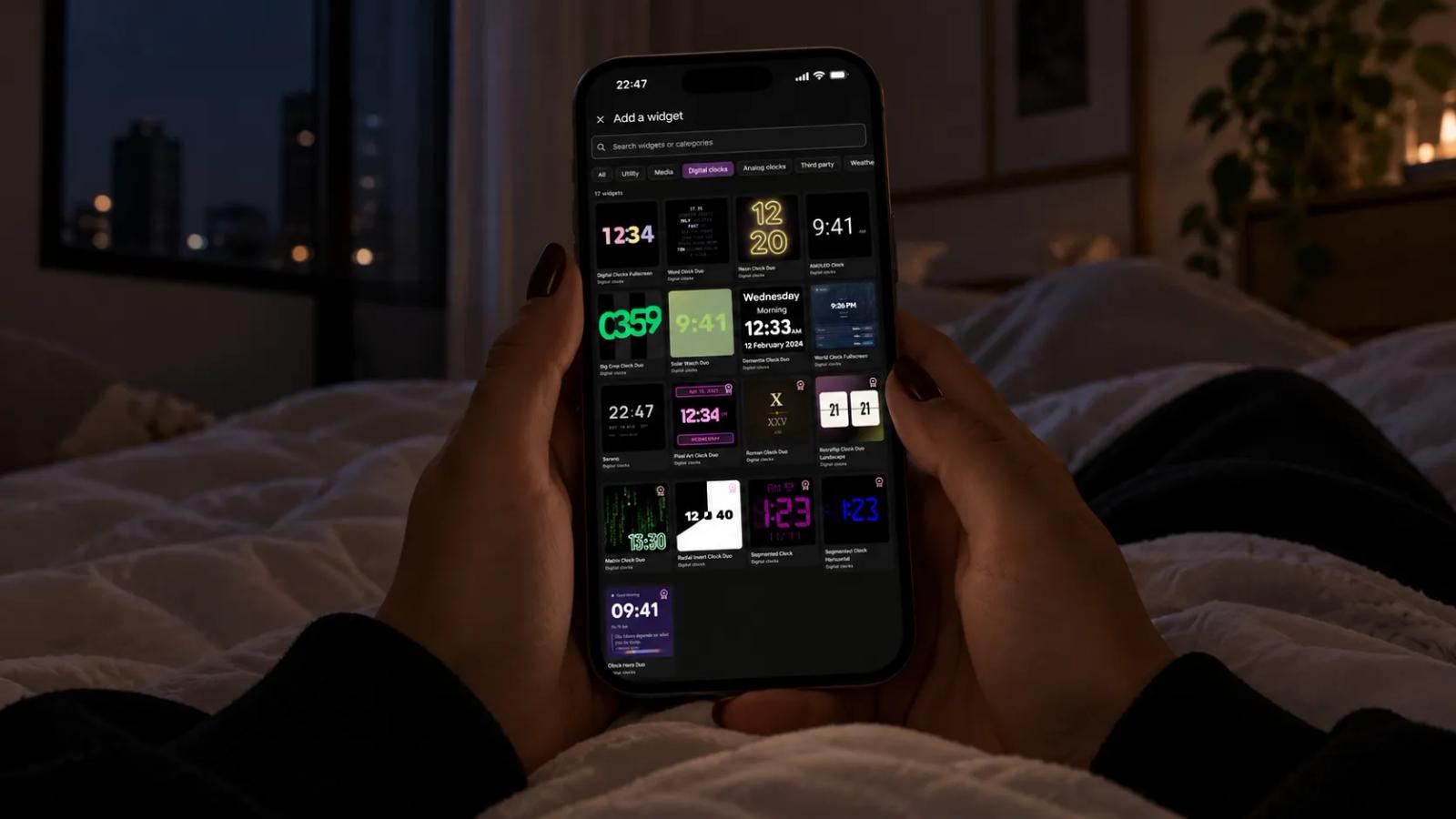
Clocks you can set up on Standby Mode

Karine Honma
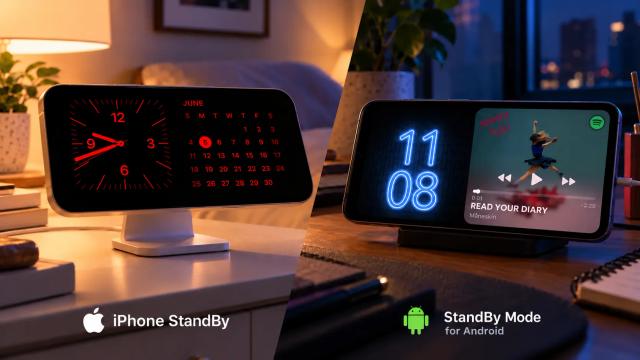
See how to put a fullscreen clock on your Android and explore the StandBy Mode Fullscreen and Duo clocks, from the flip clock to AMOLED.
If there's one thing I love doing, it's personalizing and customizing stuff. I love grabbing my phone at night, before bed, and hunting for apps to fill it up with little extras.
Lately, my obsession has been customizing StandBy Mode widgets, and the ones I love customizing most are the clocks.
Since Android doesn't have a native fullscreen clock for when your phone is charging, and AOD only shows the time in small print, I like to switch to a different clock setup in the app every week.
In this post, I'll show you some clock options and how you can customize them, whether in Fullscreen, Duo or Duo with Yoga Mode turned on.
First: how to set up a fullscreen clock in the app
- Turn on Quick Launch under Settings > App Launch, so the app opens by itself when your phone starts charging.
- Choose your clock. In Fullscreen, swipe down until you reach the clock you want. Tap the gear icon to adjust colors, fonts and other details. In Duo, tap the pencil or go to Duo Settings, choose Yoga mode and pick the side whose widget you want to highlight.
Fullscreen clocks
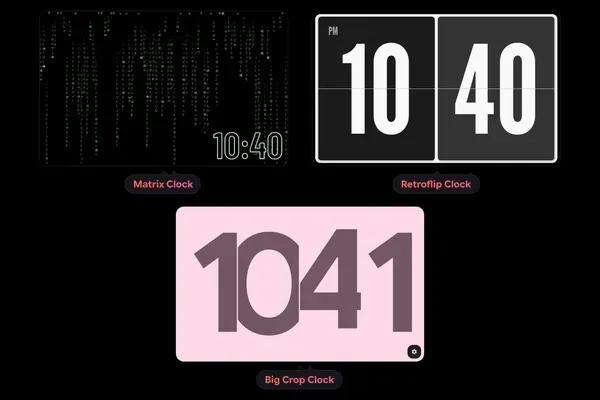
In Fullscreen, the clock is the only thing on the screen. It works best when you want to read the time from across the room, like on your nightstand, in the kitchen or on a shelf.
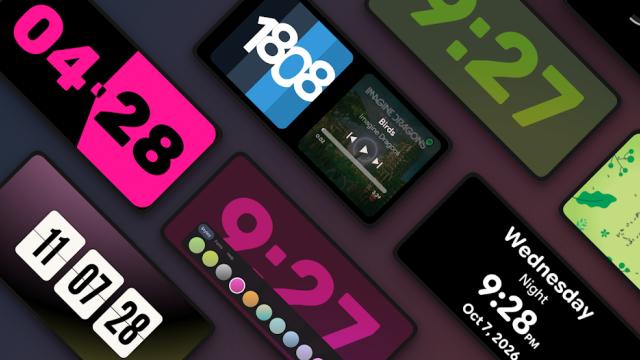
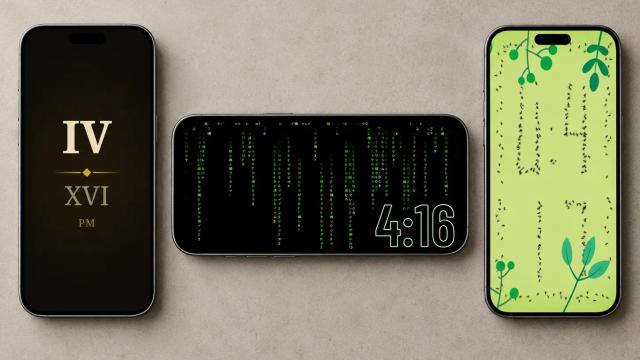
There are 15 clock options in this mode, both analog and digital. My favorites are the Matrix Clock, Retroflip Clock, Neon Clock and Big Crop Clock. Each one has extra color, shape and font options in its widget settings.
Duo clocks
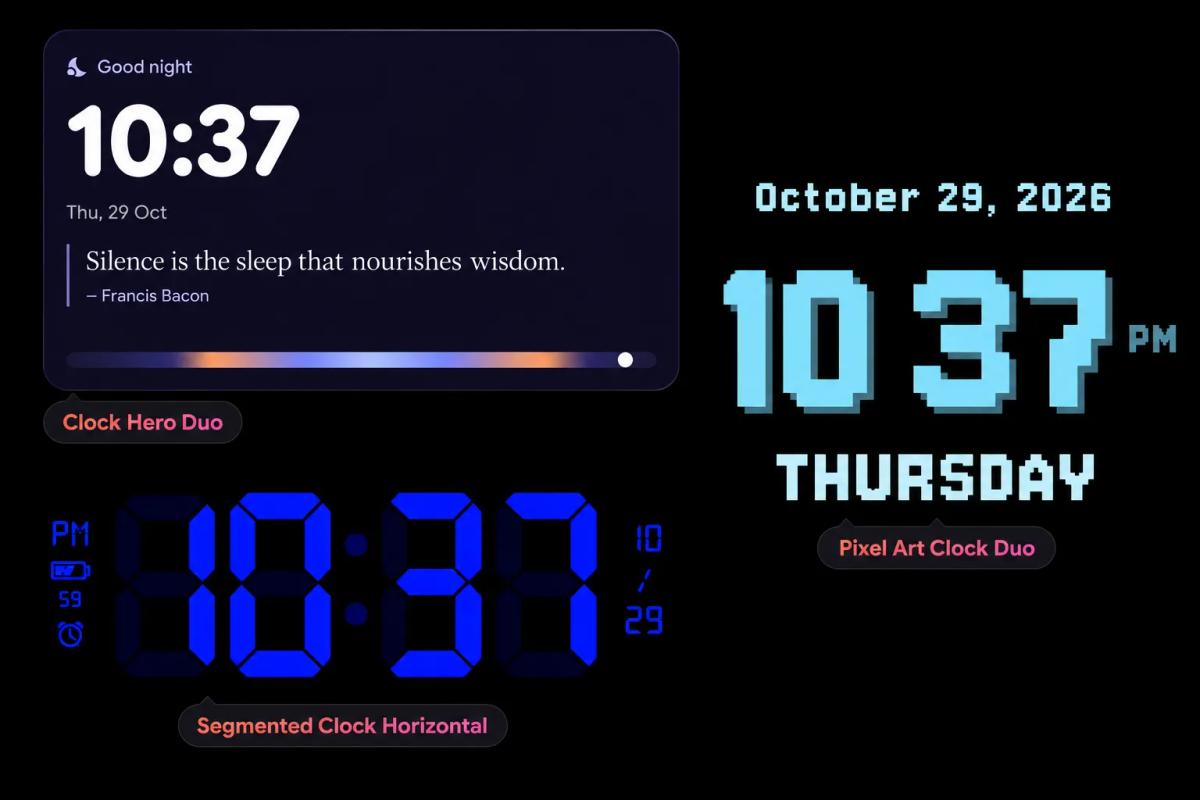
In Duo, the clock takes up one panel and the other is free for weather, your calendar, music or a third-party widget. It's the right choice for your desk, where the time alone isn't enough.
Here, I especially like the Pixel Art Clock Duo, Segmented Clock and Clock Hero Duo. I like the first one when I'm about to play games: I have a little ritual of turning my home office into a gaming setup, and I switch to this clock because it looks really cool in photos. The second one stays on my nightstand when I'm in a techy mood, and I use the last one when I want to stay calm at work (I read the nice quotes, and that lifts my mood).
I always use Yoga Mode when I'm creating content for you, especially for screenshots.
Clock tips you can use
- Pick a nice spot for your device, whether it's a tablet or a phone, in landscape or portrait.
- On your nightstand, Sereno with Night Mode on a schedule works well as a nighttime clock without overstimulating you.
- At work or in your home office, the Word Clock Duo is minimalist and doesn't draw much attention, but it still looks good and makes a lovely background for video calls.
- On a living room display, Digital Clocks Fullscreen with the right settings matches any decor.
- If you prefer the classics, the analog clocks or the AMOLED Clock will work well for you.
An extra piece of info in the corners
Clocks can also get complications, mini widgets in the top corners that show your battery, next alarm or week progress. It's an easy way to get more information without leaving Fullscreen.
There's always room to improve or expand (there's even an ant clock, so anything is possible). Let your imagination run wild and send a new clock suggestion on UserJot. That's where the community votes on what the app gets next.
And if you want to personalize your Android in a way that's different and all yours, download the app here:

About Karine Honma
My work moves between two great passions: Content Marketing and Copywriting. I’m driven by a constant desire to keep learning and by honesty in everything I do. I’m passionate about discovering the power of words and well-crafted content. I’ve collaborated with agile startups and agencies with large client portfolios. Each experience has brought me new learnings, new challenges, and a lot of satisfaction — and coffee ☕. Here you’ll get to follow a bit of my professional journey. But if you want to know who I really am — the creative, curious, and restless Karine — let’s grab a coffee, online or in person.