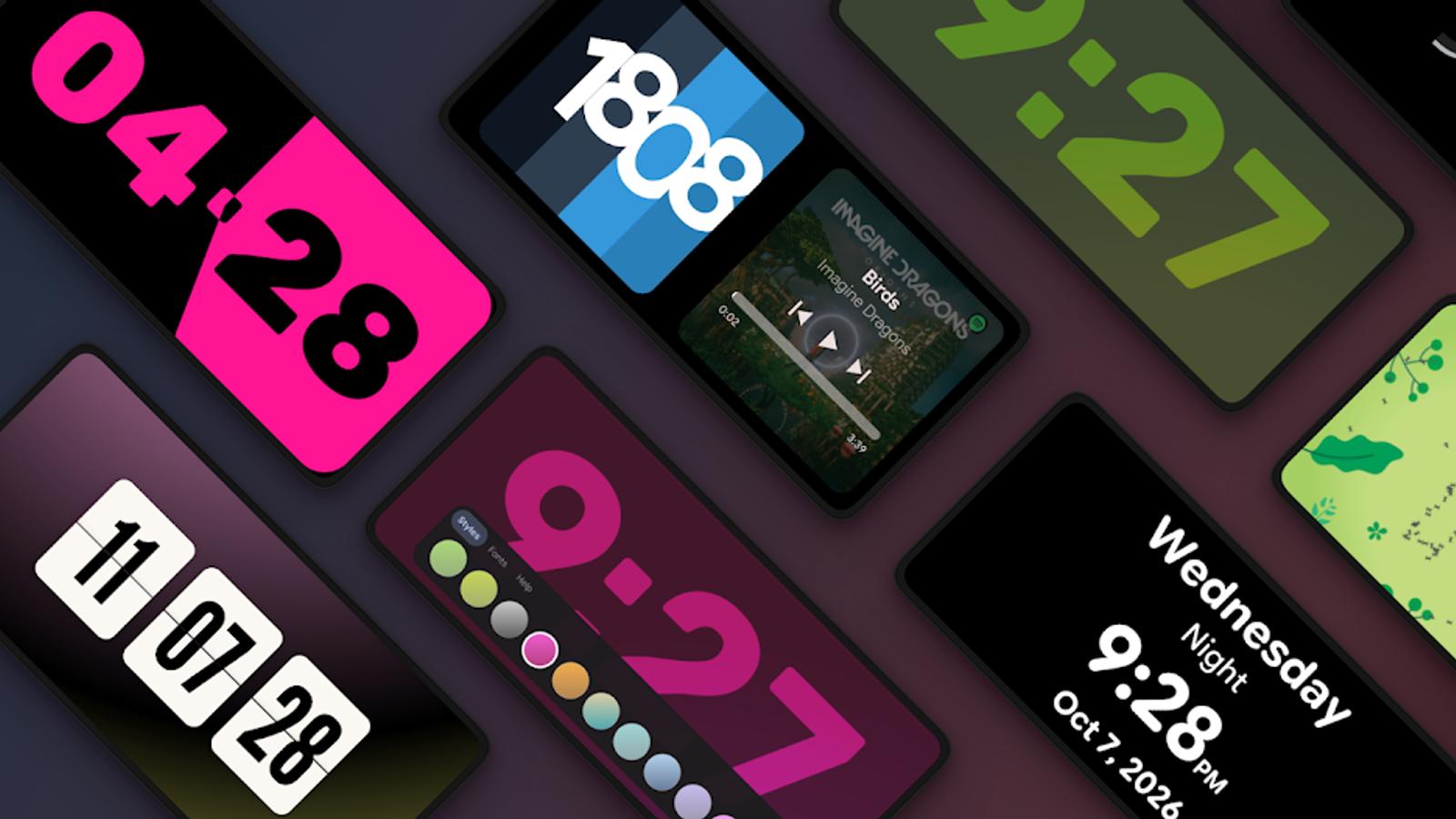
What Can I Use StandBy Mode For?

Karine Honma
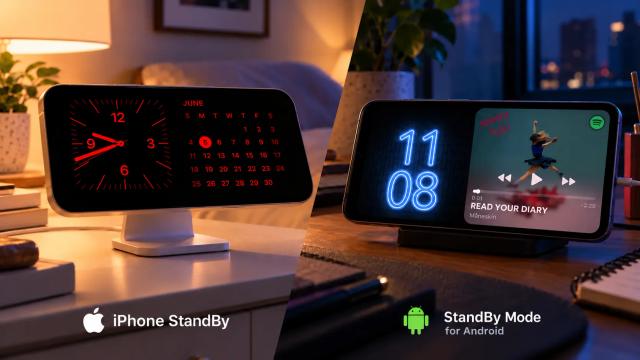
Nightstand, desk, study, kitchen: see the StandBy Mode setups for Android, the widget combinations in Duo and the fullscreen modes.
Has this ever happened to you? You're cooking, you set a timer, you go do something else, you forget about it and, by the time you remember, it's too late. Or you wanted something to remind you every day about an important event coming up, but adding it to your calendar would get in the way of all your other plans?
Both have happened to me, and in the second case I actually missed the event because the calendar notification came 30 minutes before it started and I didn't have enough time to get ready and leave the house. I lost the R$250 I'd paid for the ticket.
In both cases, if I'd bought a kitchen timer or stuck a Post-it on my nightstand, I probably wouldn't have forgotten. But who says I'd remember to buy that darn timer? Or that I could stand looking at an ugly Post-it every day? It's much easier to have these features on something that's with you all the time: your phone.
And that's exactly where StandBy Mode comes in handy! In this post, I'll tell you what you can use the app for and share how I use it in my day-to-day life.
The two ways to set up your screen
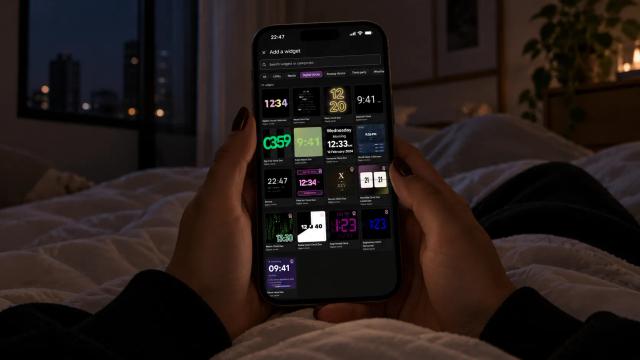
To start, everything in StandBy Mode is built on three display modes. It's worth understanding the difference before you pick a scenario, because every combination below uses one of them:
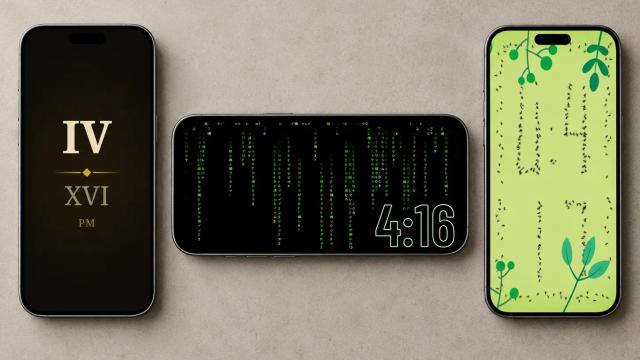
- Fullscreen: one widget takes up the whole screen, picked from its own fullscreen catalog. This is where you'll find clocks, the three fullscreen weather layouts (Premium), Photo Slide & Frame and Vibes.
- Duo: the screen splits into panels, and each one takes a widget from the app or a third-party widget, like your email. This is the mode for combinations.
- Yoga Mode: takes a Duo widget and puts it on the whole screen when your phone sits idle. One tap brings Duo back. It's Premium.
Where you can use it (and where I do)
Note: I have a spare tablet and phone, so I can leave the app running without touching anything, but I also use it on my everyday phone.
01. On your nightstand
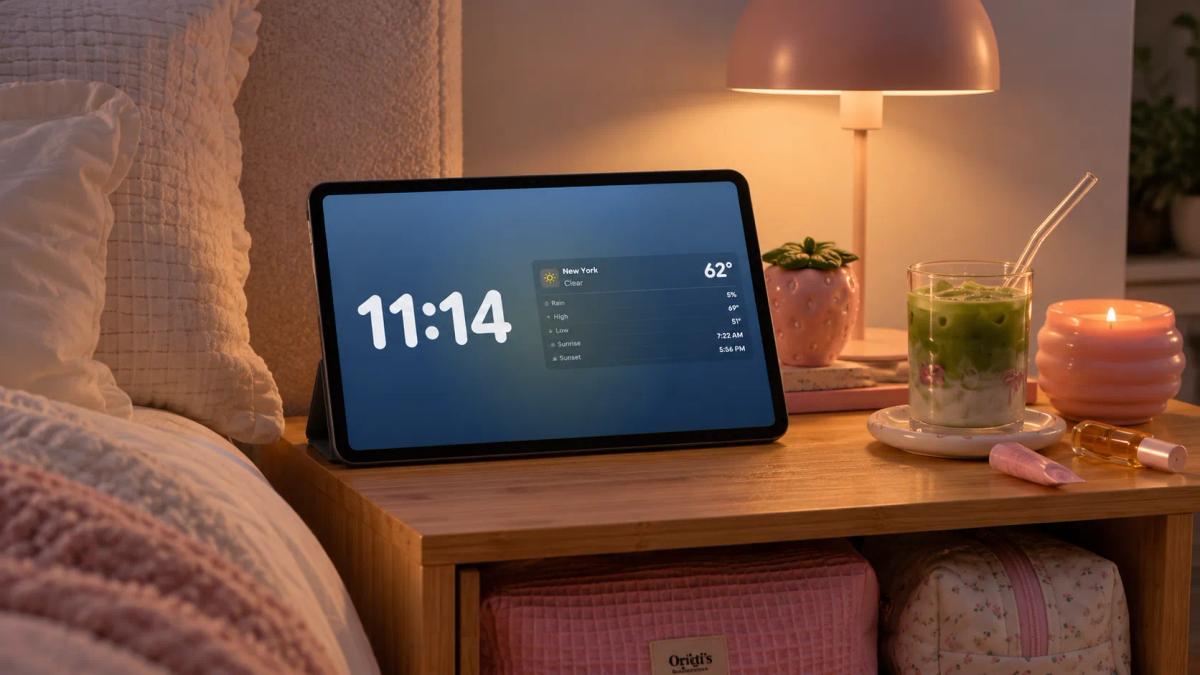
I hate waking up and looking straight at my phone: right away I see notifications I didn't want, credit card bills and WhatsApp messages. I'd rather wake up and get a few minutes of peace before the daily rush.
But I also hate not being ready for the day, and I've lost count of the times I left the house wearing a coat on a 30°C (86°F) day, or went out without an umbrella and got sick.
That's why I set up the Weather and Clock Duo on my nightstand (no Premium needed). It shows me the temperature, the chance of rain, the low and high, and the time, and it changes color with the weather, staying light during the day and dark at night.
You can also use it on a display in your living room before you head out, so you know whether to take a coat or an umbrella. Trusting what you see out the window is a rookie mistake!
And since it goes dark at night, the screen light doesn't bother me (I can't sleep if anything is on near me).
02. At your desk
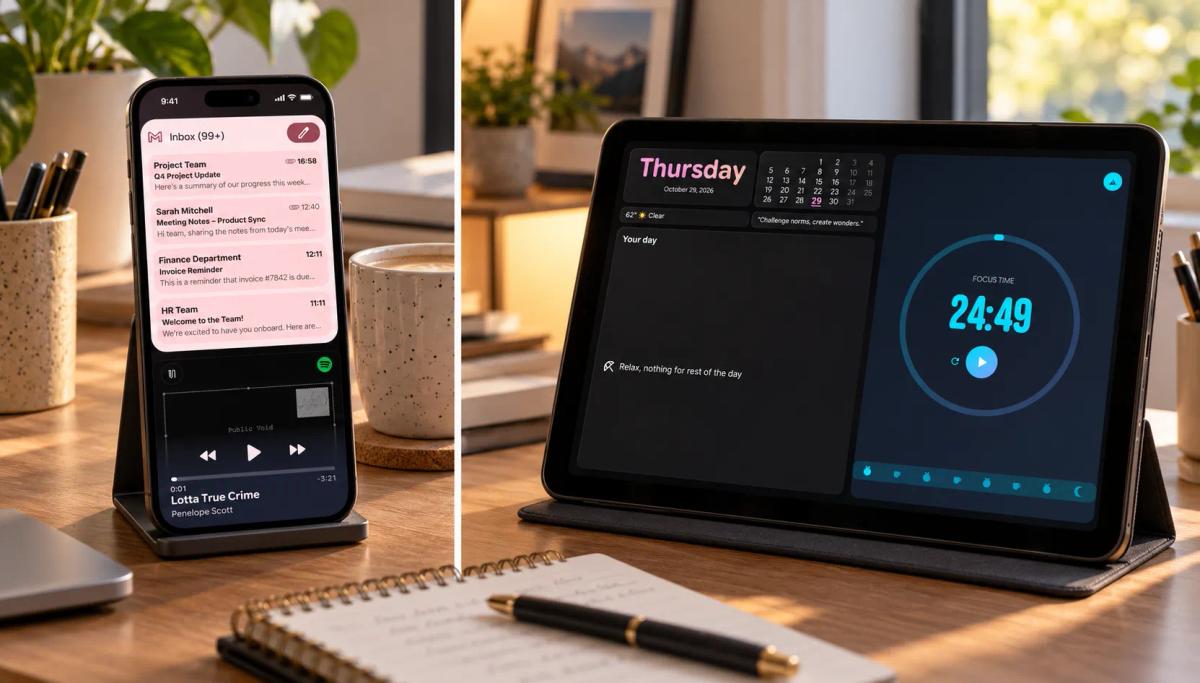
This is where I love using StandBy Mode the most. I set up Duo across 4 Spaces and configure each one differently:
Day Centric Dashboard + Pomodoro Timer: I can see the date and my appointments for the day, and also set focus blocks so I don't get too deep into work and miss meetings, or pick up my phone and end up scrolling for an hour. Both are paid features.
Player Hero Duo + Third Party Widget Slot 1: I listen to my true crime podcasts (yes, they help me focus), switch episodes easily and keep up with my boss's emails. Both are paid features (I have to make my subscription worth it, right?).
03. To study with focus
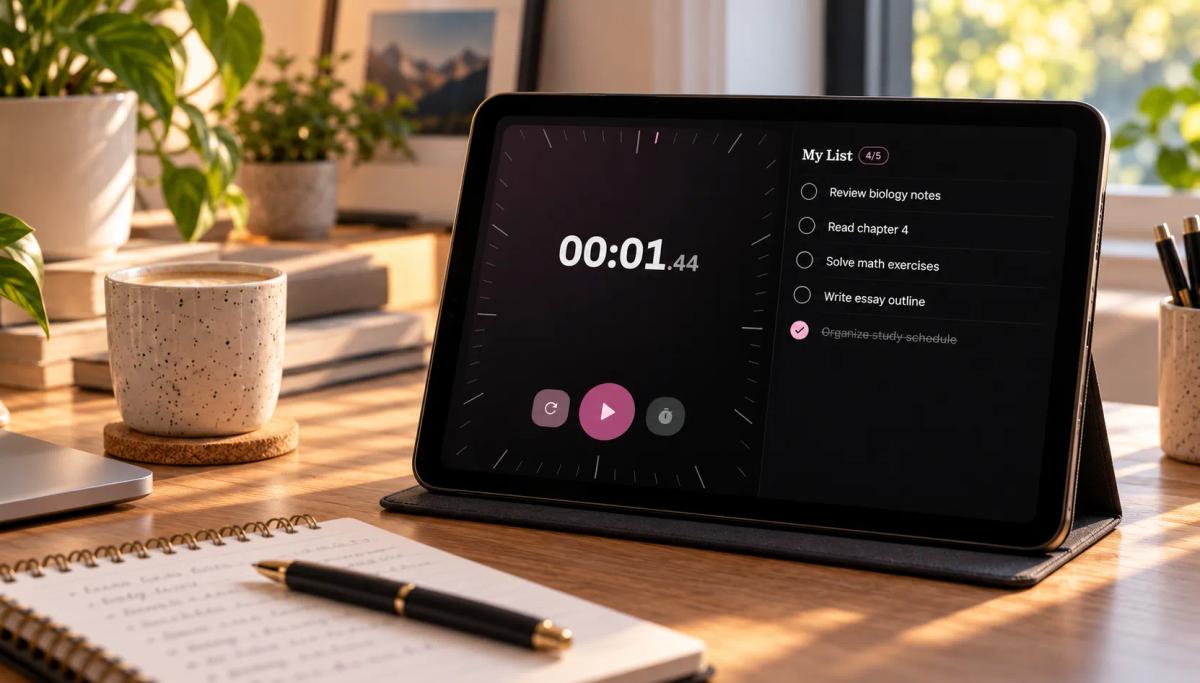
I also have a study focus setup, especially for those days when I have very little time and need to get the most out of it.
I use Stopwatch + To Do List: the first helps me keep track of my study blocks for each subject, and the second is where I check off what I'm going to study.
04. To track goals and habits
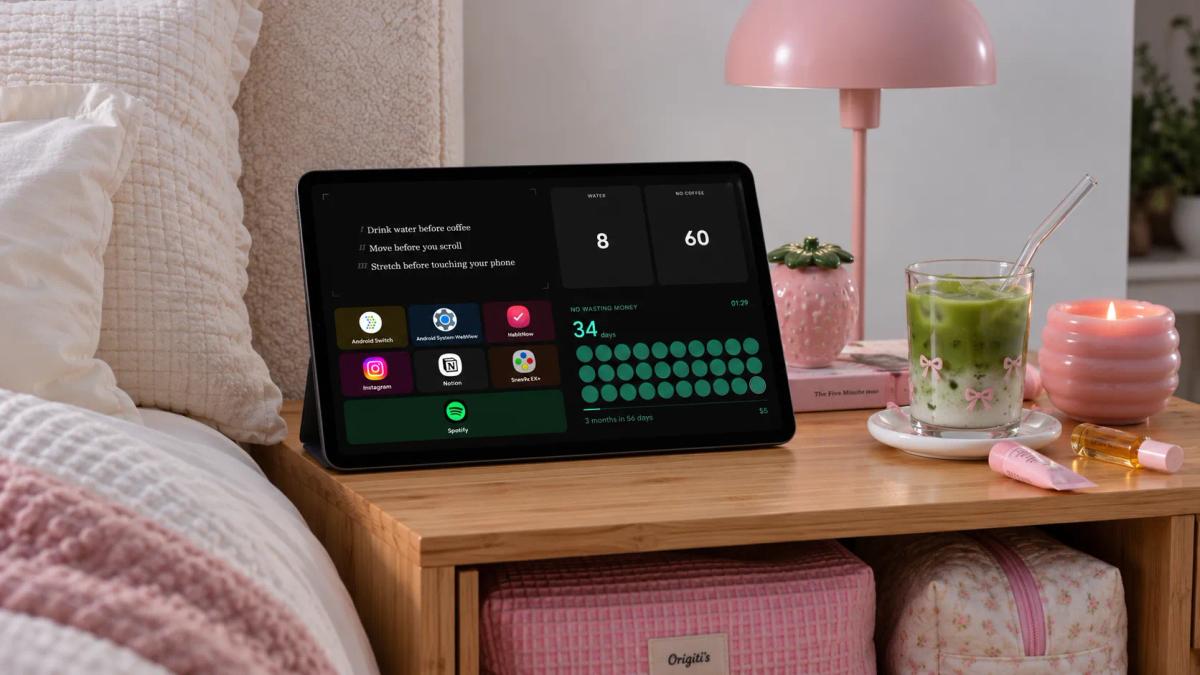
StandBy Mode is the only app I've ever used that lets me keep track of what I need to do every day to reach my goals without getting reminders to drink water or an owl getting upset with me.
Trigger: Protocols Duo. I added the main habits I need to keep for what I'm focusing on right now. For example, "drink 200 ml of water every hour", "put on my gym clothes for cardio" and "shower after logging off work" (yes, some days I forget to shower because of work, judge me).
Action: Tally Counter. I see how many days I've managed to stick with it and how many points I've earned each day, and then I take action to raise the score. That alone gives me a healthy dose of dopamine for completing the mission, but I use a specific Duo for the reward.
Reward: Quick App Launch. I set up 3 apps that I only open once I've done what I committed to: TikTok (with a 30-minute daily scroll timer), xSNES to play my favorite retro games, and YouTube to watch random videos.
I also have a setup I open at the end of the day that I call Reinforcement. It's the Sober Counter, showing how many days I've managed to do the 3 things I set out to do. When I hit 30 days, I'll give myself a bigger reward.
05. In the living room or kitchen

I don't use this one, but I've read messages from users who do: they set up Photo Slide & Frame so the device works like a living picture frame. I have to admit I think it's a really cool idea (it reminds me of the moving newspapers in Harry Potter), but I've never used it. If you have a spare phone or tablet, it's a great idea.
06. To care for someone
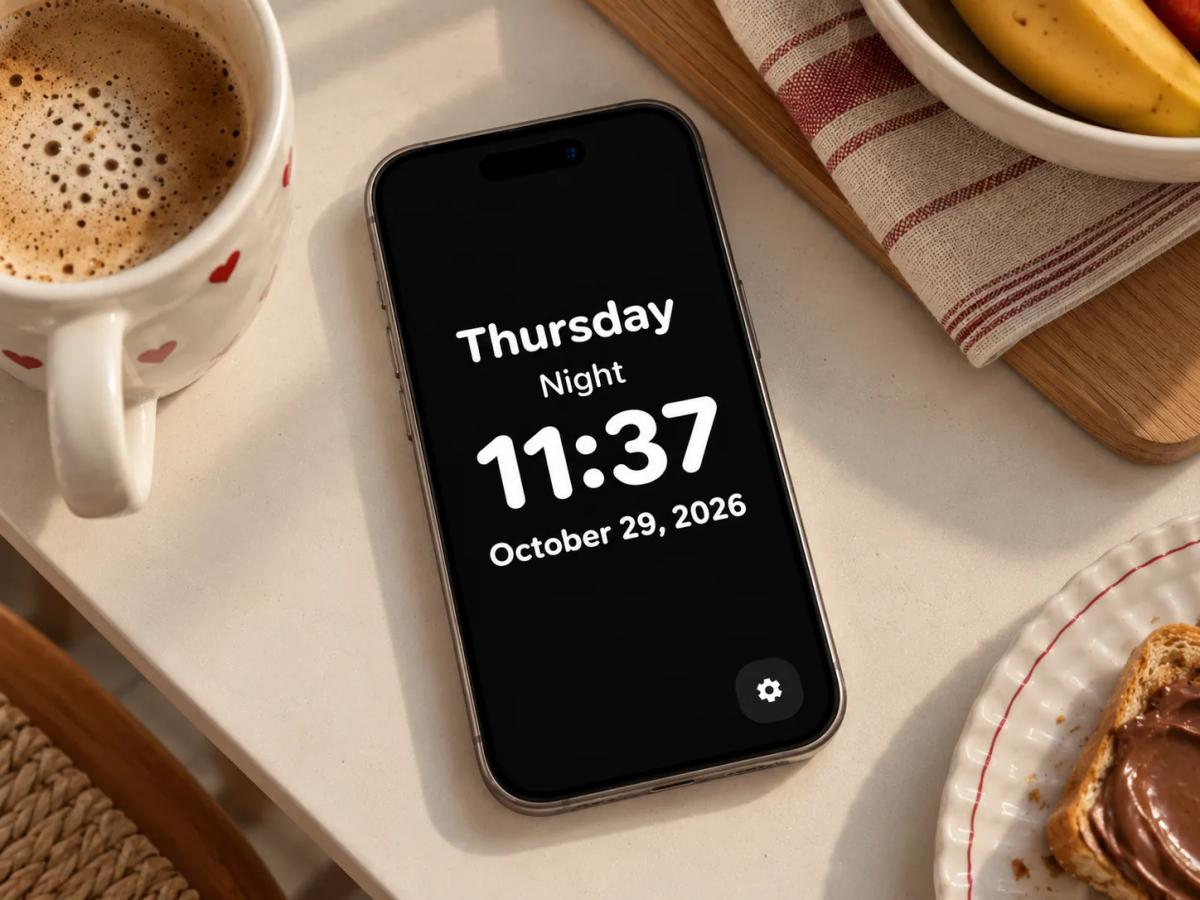
This is my favorite feature. I use it on my dad's phone, and he's 80.
The Dementia Clock shows the day, the time of day and the time in large letters, designed for people with dementia or low vision. It came from requests by caregivers who used the app, and I'm really grateful Wesley saw those requests.
07. Just for the looks
Not everything has to be useful. You can set the app up with a Pixel clock, for example, to match your gaming setup, a random Meme to make you laugh during the day, or leave Vibes playing in the background while you write in your journal.
How to switch setups without starting over
Each setup above can be saved as a Space. You build your nightstand, desk and study setups once and switch between them by swiping three fingers to the side. ithout Premium, you get 2 Spaces; with Premium, up to 6. The post on Spaces shows three ready-made setups you can copy.
To sum up
You can use the app in plenty of other situations too: during workouts with the Timer Duo, to remind you how much time is left until a big event with the Countdown Duo, or simply to avoid staring at a black screen while your phone charges, with the 11 battery widgets.
If you still feel something's missing, a feature or widget that makes you think "Wow, if it had this, I could use it right now", send your suggestion on UserJot. That's where the community votes on what the app gets next.
And if you haven't installed the app yet, get it here, and go Premium if you want to enjoy everything it has to offer:

About Karine Honma
My work moves between two great passions: Content Marketing and Copywriting. I’m driven by a constant desire to keep learning and by honesty in everything I do. I’m passionate about discovering the power of words and well-crafted content. I’ve collaborated with agile startups and agencies with large client portfolios. Each experience has brought me new learnings, new challenges, and a lot of satisfaction — and coffee ☕. Here you’ll get to follow a bit of my professional journey. But if you want to know who I really am — the creative, curious, and restless Karine — let’s grab a coffee, online or in person.