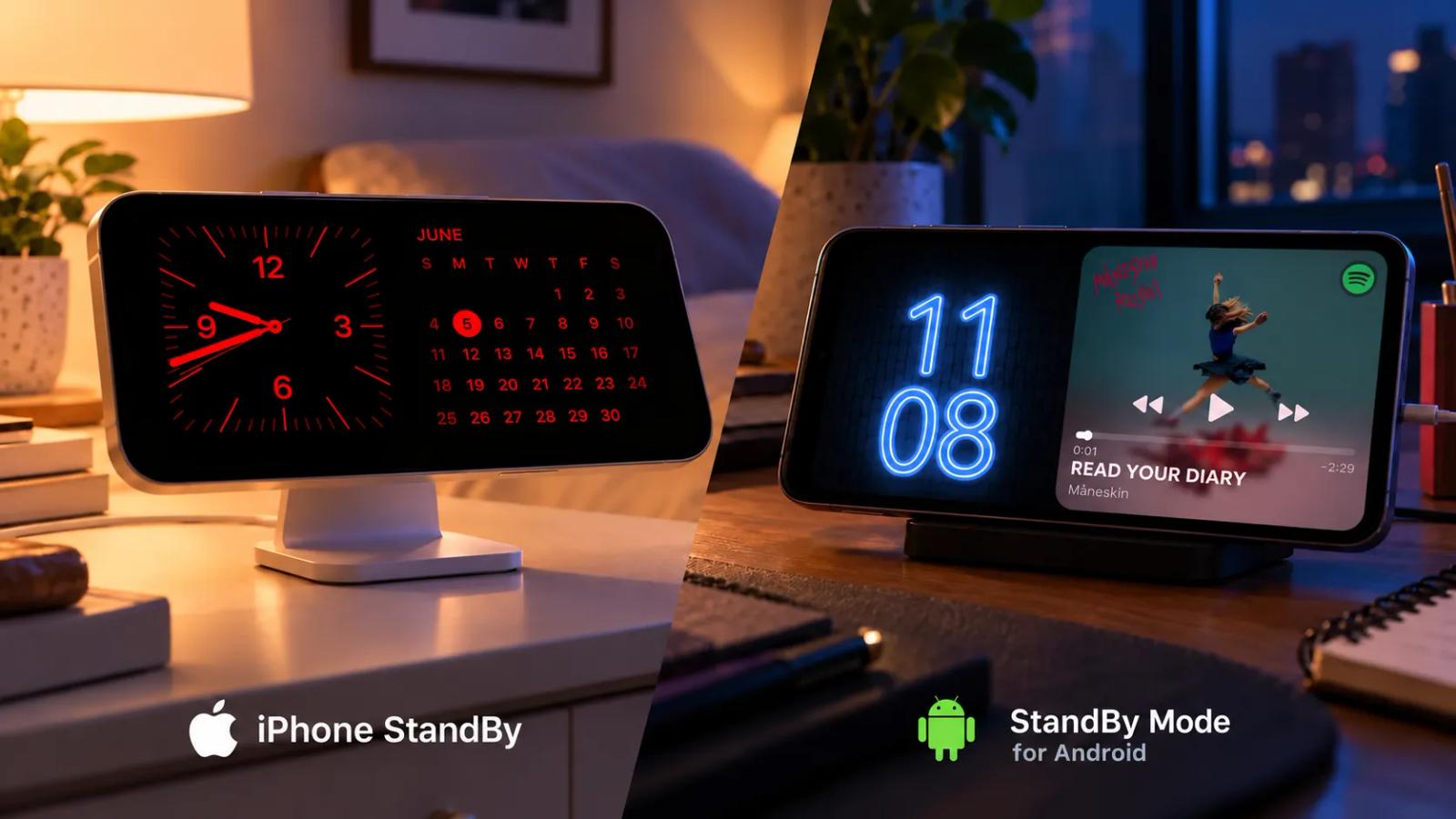
The differences between iPhone StandBy and StandBy Mode on Android

Karine Honma
Compare iPhone StandBy with StandBy Mode for Android: what turns each one on, which widgets they take, night mode and what only the app does.
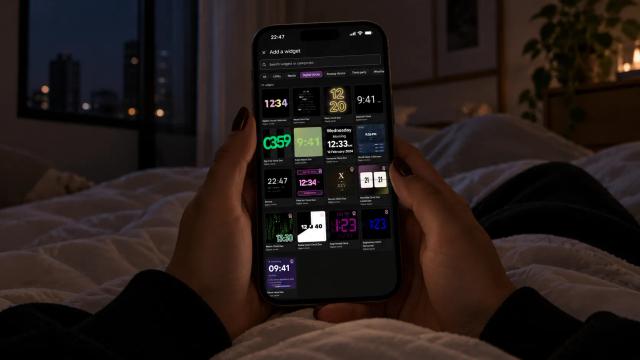
If, like me, you love personalizing and customizing your devices, you probably thought it was pretty cool when Apple launched StandBy with iOS 17 in 2023. Even though I don't stare at my phone all the time, I always found it dull to leave it sitting there with a black screen while it charged. So when this came out, being able to set up a clock, photos or a widget panel totally blew my mind.
When Carol invited me to join the StandBy Mode team, I honestly wondered if it was just a copy. After all, what was the difference between the app and Apple's feature? Imagine my surprise when I downloaded the app and saw everything it had to offer.
Even if you're an Apple fan, you've got to admit the feature is really cool, but still limited, and getting only one update a year is a bit frustrating.
In this post, I want to show you the real difference between the two and which one suits you best. Just so you know, I'm not here to play favorites: each one has its value, and if you only have an iPhone and no Android, this post really isn't for you. But if you can choose between the two and want a little something extra, it's worth reading to the end.
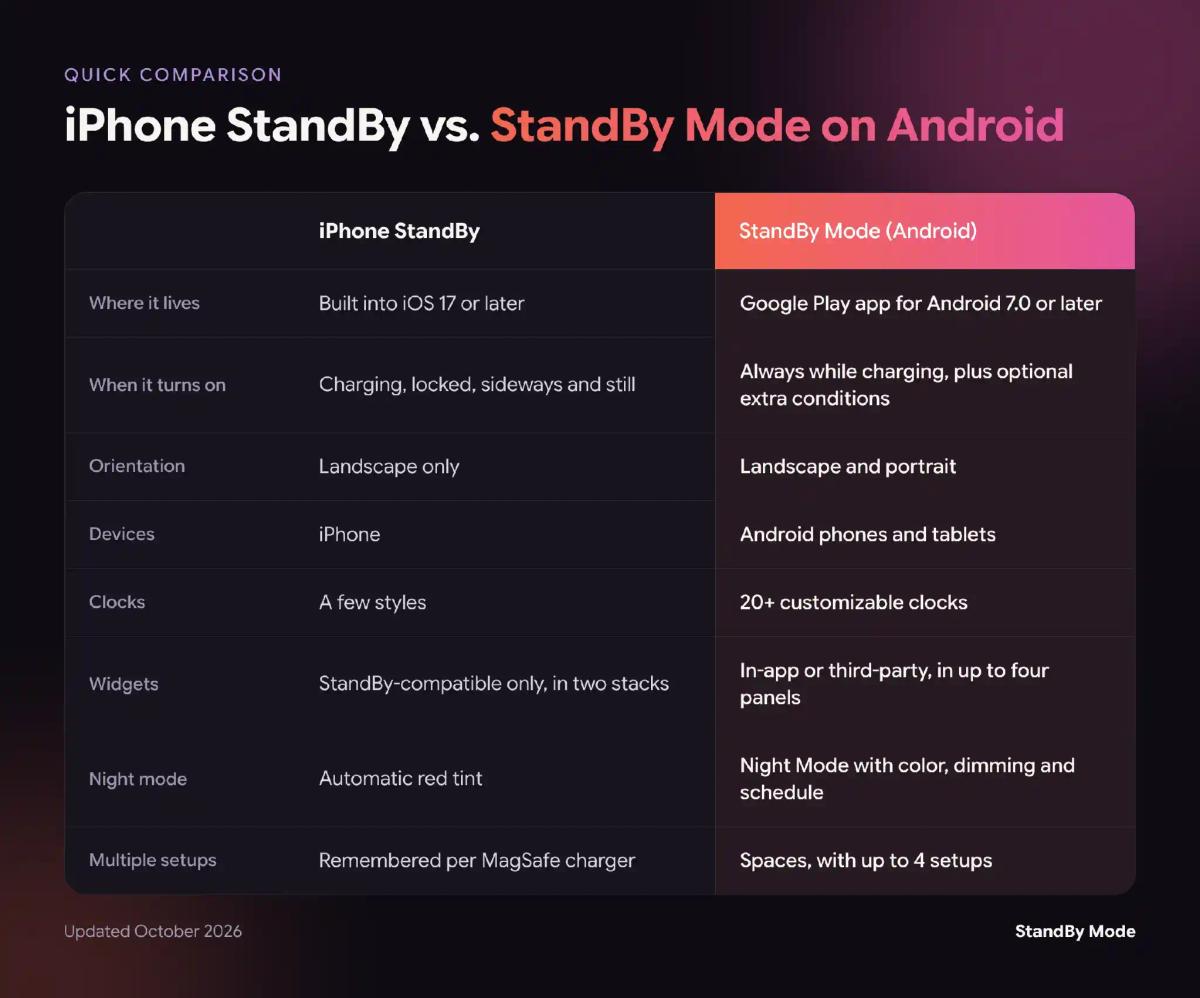
A quick, simple comparison
What turns the screen on
On the iPhone, StandBy only appears when four conditions are met at the same time: the phone is charging, locked, sideways and still. On models without an Always-On display, like the iPhone 13 or iPhone 15, the screen goes dark after a few seconds and comes back with a tap or a light bump on the table. The continuous display is reserved for Always-On models, like the Pro line from the iPhone 14 Pro onward.
In StandBy Mode, Quick Launch makes that call, under Settings > App Launch. Charging is still required, so the display never drains your battery away from the outlet. On top of that, you add any conditions you want: wireless charging only, only from the lock screen, when the screen turns off, when you connect to a specific Wi-Fi network or at scheduled times.
For example, you can open the display only when your phone joins the office Wi-Fi and leave charging at home untouched. If you prefer Android's native screensaver, the post on screensaver mode explains the difference between Screensaver and Quick Launch.
Clocks, widgets and layouts
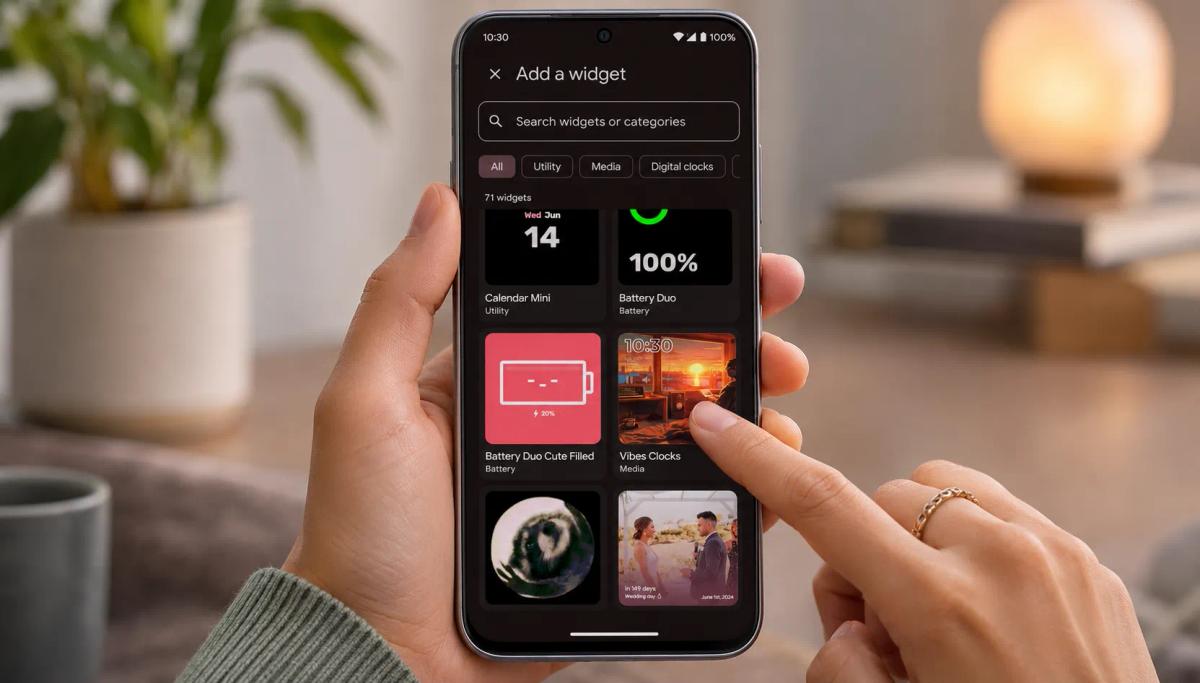
iPhone StandBy has three screens you swipe between: widgets, photos and clock. Widgets sit in two side-by-side stacks and have to support StandBy. Live Activities, like a live score or a delivery on its way, take over the whole screen.
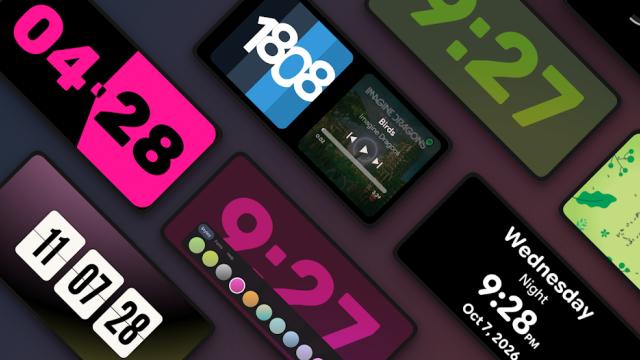
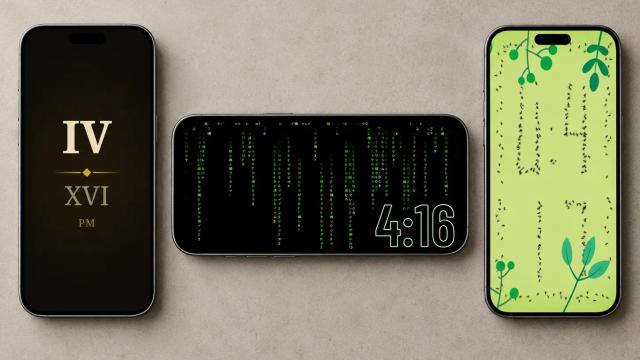
On Android, StandBy Mode has more than 20 clocks, from the Retroflip to the AMOLED Clock, from the fun ones to more serious ones on a pure black background. Duo gives you 4 Spaces with up to 4 widgets side by side, though I'd strongly recommend sticking to two, since it looks way better. Each panel takes the app's own widgets or the third-party widgets you already use on your home screen.
Two features take Duo further. The Widget Rotator swaps widgets on its own, at the interval you set, and Yoga Mode puts any Duo widget on your whole screen.
At night: a red tint or an adjustable Night Mode
When the room gets dark, the iPhone switches StandBy to a red tint that gives off less light (though, honestly, it bugs my eyes). The setting comes down to turning that mode on or off and, on Always-On models, choosing whether the screen wakes with motion.
In StandBy Mode, Night Mode turns on manually, automatically or on a schedule, with the color and dimming level you choose (it's never dark enough for me, but that's fine). Since the screen can stay on all night on an AMOLED panel, the app also has burn-in protection, which shifts the image slowly so it doesn't mark the display.
What only StandBy Mode has
Besides running in portrait and on tablets, StandBy Mode has features with no match in iPhone StandBy. Many of them came from community requests, and some arrived in the last few months. The ones that show up most in everyday use:
- Duo Mode: create up to 4 different spaces, with 2 to 4 widgets per screen.
- Tools section: pick the app's main utility tools, like calendar, timer, Pomodoro and counter.
- Dashboards for weather and device info.
- Media Player with real-time lyrics.
- Weather displays with extra information and manual customization.
- Relaxation section, with quotes and a YouTube player set to lo-fi by default.
- Yoga Mode: put a single Duo widget in the spotlight.
As I mentioned, how often the app updates also matters in this comparison. Between August and October 2026, it added the AMOLED Clock, the Command Center, the Striking Calendar and Yoga Mode. iPhone StandBy changes with iOS releases, once a year.
So, which one should you choose?
The phone you own makes the decision. On the iPhone, native StandBy handles the basics well: clock, photos and a few widgets while it charges.
Android has nothing similar built in, and StandBy Mode goes beyond Apple's own feature. You get more ways to turn it on, more clocks, widgets from any app and real control over the screen at night.
"But when is it coming to iPhone?"
The last I heard, Wesley has no plans for an iPhone version yet because of technical limitations. But let's not lose hope!
To wrap up, the app isn't perfect: there's still plenty to improve and build. So if you miss a feature or want to share your opinion, drop us a message on UserJot.
And if you haven't downloaded the app yet but you're curious, grab it here:

About Karine Honma
My work moves between two great passions: Content Marketing and Copywriting. I’m driven by a constant desire to keep learning and by honesty in everything I do. I’m passionate about discovering the power of words and well-crafted content. I’ve collaborated with agile startups and agencies with large client portfolios. Each experience has brought me new learnings, new challenges, and a lot of satisfaction — and coffee ☕. Here you’ll get to follow a bit of my professional journey. But if you want to know who I really am — the creative, curious, and restless Karine — let’s grab a coffee, online or in person.