How to Change the Lock Screen Clock Style on Android

Karine Honma
Change your lock screen clock style, color and size on Pixel and Samsung. Then see 38 clock designs for the screen your phone shows while charging.
How to Change the Lock Screen Clock Style on Android
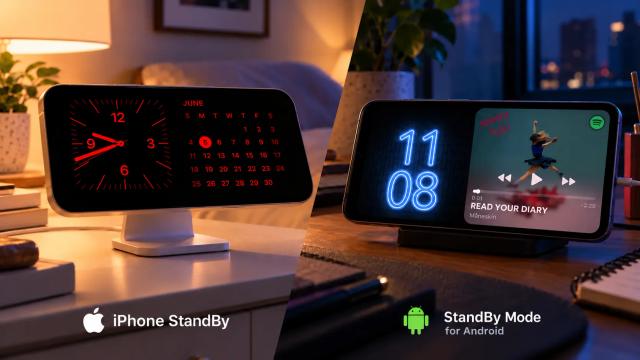
StandBy Mode is an Android app that turns your phone into a smart display while it charges.
To change the lock screen clock style on Android, touch and hold the lock screen (on Samsung) or open Wallpaper & style (on Pixel) and pick a different design. Both brands let you change the style and color, and on most phones the size, but from a short list of options.
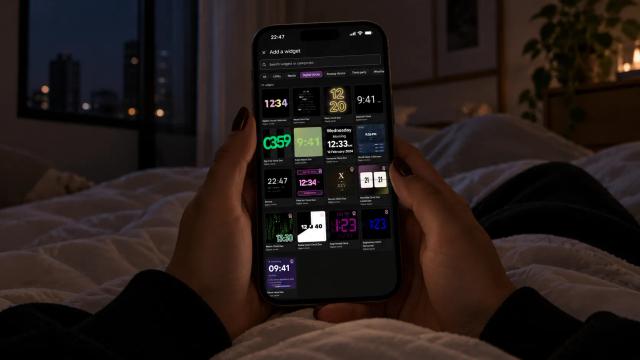
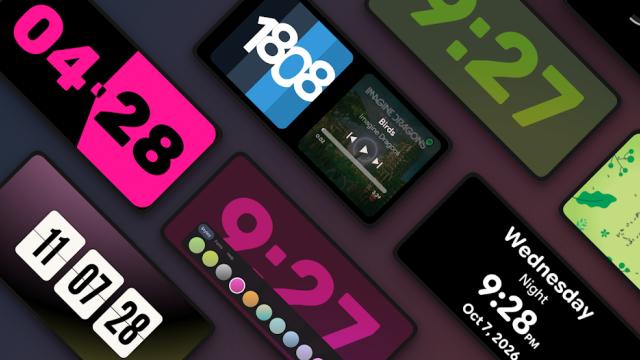
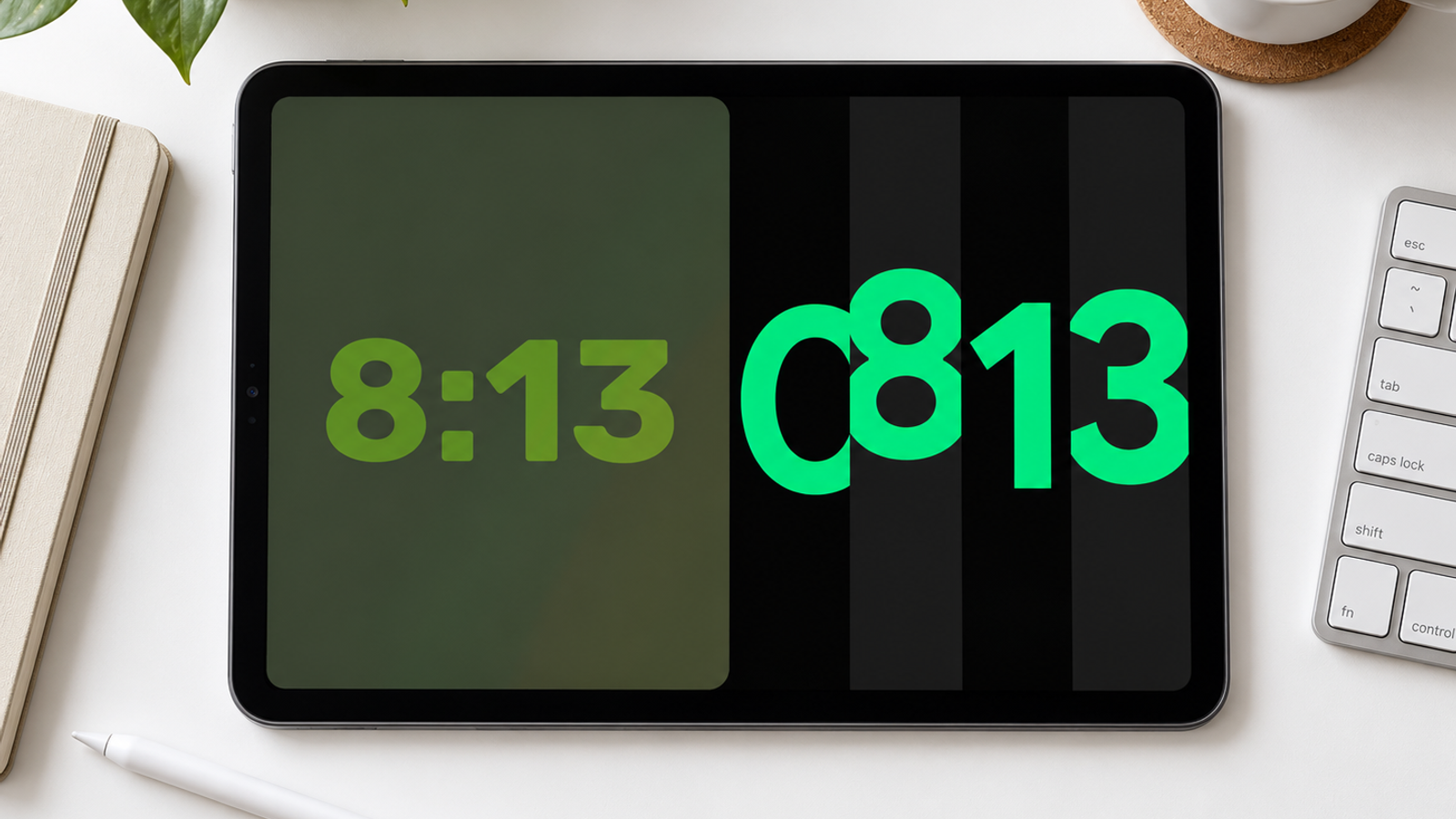
On the charger, you get far more room to play. StandBy Mode Pro has 18 digital and 5 analog clocks for Duo mode, plus 15 fullscreen clocks for when you want the time to fill the whole display.
How to Change the Lock Screen Clock on a Pixel
On a Pixel, the lock screen clock lives in the same menu as your wallpaper. Clock style options need Android 16 or newer, according to Google’s Pixel Help. If you don’t see them, check for a system update first.
- Touch and hold an empty space on your home screen, then tap Wallpaper & style.
- Swipe to the Lock screen tab and scroll up to the settings.
- Tap Clock.
- Choose what to change. Style switches the design and adjusts the clock width, Color sets a color or matches your wallpaper, and Size turns Large on or off.
- Tap Apply.
Set Size to Large and the clock still looks small? Check your notifications. The large clock shrinks to make room for them and only goes back to full size when the lock screen is clear. Droid Life spotted this when Android 12 introduced the big clock.
How to Change the Lock Screen Clock on a Samsung
Galaxy phones give you more control. You edit the clock right on the lock screen, and besides style and color, One UI lets you change the font, size and position, as Tom’s Guide explains.
- Open the lock screen editor: go to Settings → Lock screen → Edit, or touch and hold the lock screen and unlock your phone.
- Tap the clock to open the clock editor.
- Pick a style and font from the options at the bottom.
- Drag the handles to resize the clock, and drag the clock itself to move it.
- Choose a color. The automatic option (A) tries to match your wallpaper.
- Tap Done.
Where the Built-In Clock Stops
Whatever style you pick, the lock screen clock is sized for a phone in your hand. Put the phone on a nightstand and, from your pillow, the digits are too small to read without reaching for it.
A charging phone needs a different kind of clock: big enough to read across the room, ideally with something useful next to it. StandBy Mode Pro starts on its own when you plug in your phone and turn it sideways, and it shows the clock in two ways.
Duo Mode Clocks: 18 Digital and 5 Analog
In Duo mode, the clock shares the screen with other widgets. The 18 digital and 5 analog Duo clocks are built for these panels, so a big clock can sit on one side with weather, your calendar or music on the other.
To add a clock to a panel in your Duo layout:
- Open StandBy Mode Pro and swipe to Duo.
- Long-press the screen to open customization.
- Tap the + button on an empty panel and pick a clock.
- Tap the panel’s gear icon to adjust borders, corners, spacing and zoom.
If you’re not sure where to start, these five cover very different moods.
Word Clock Duo
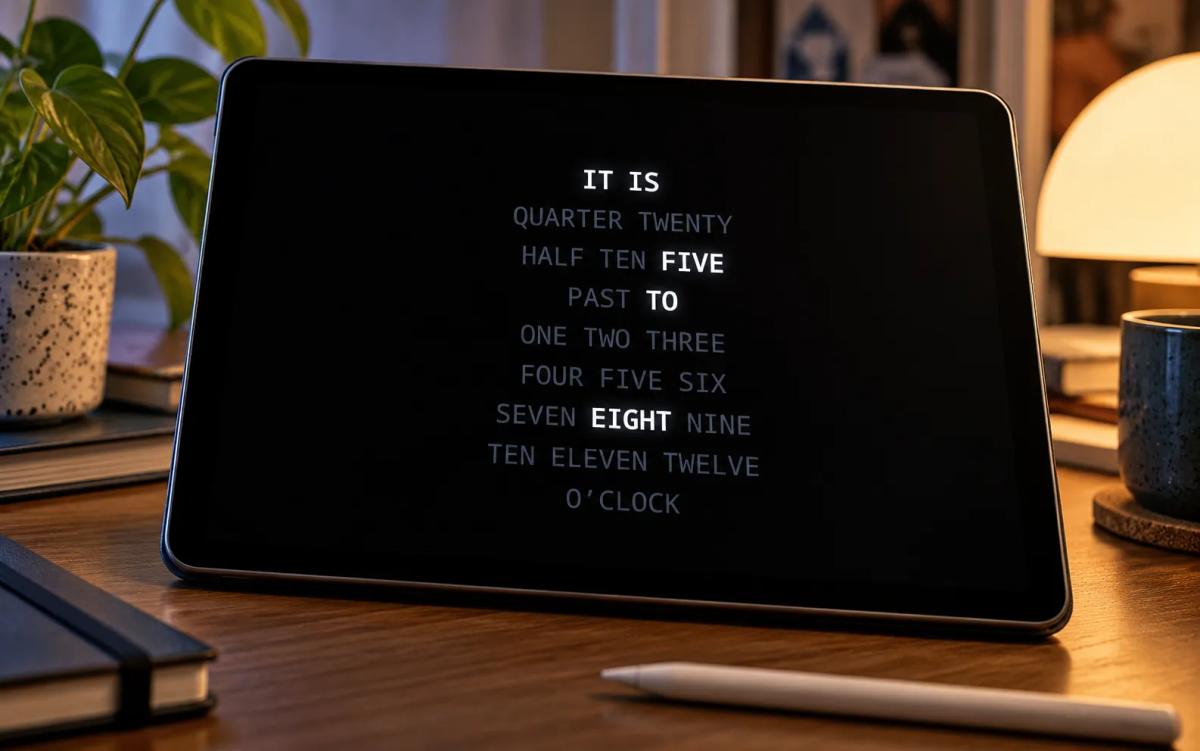
A grid of words on a black background where only the ones that tell the time light up, like “IT IS FIVE TO EIGHT”. The rest stay dim. You read the time as a sentence, in five-minute steps, so pick another clock if you need the exact minute.
Neon Clock Duo
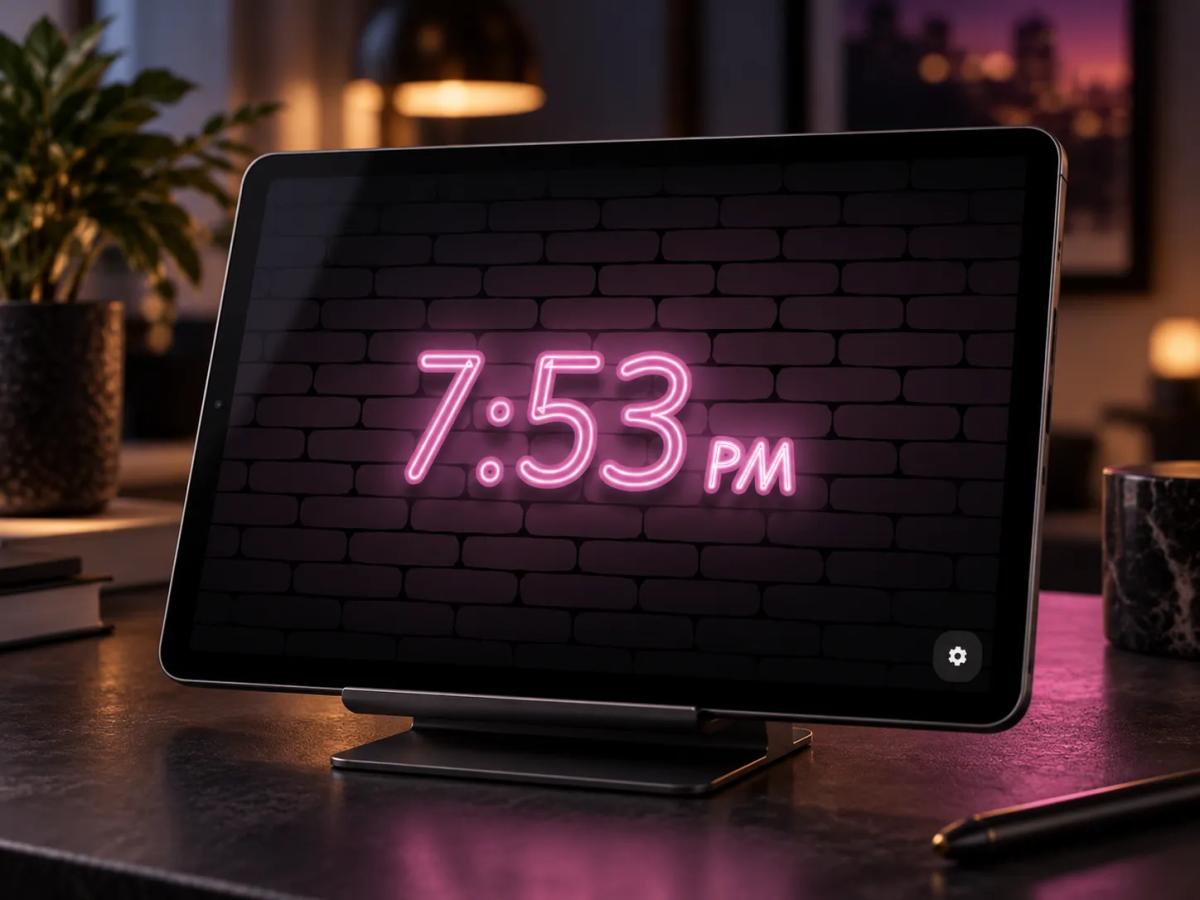
The time drawn as glowing neon tubes on a dark brick wall, like a sign in a bar. The light spills onto the bricks around the digits, and on a desk or shelf, it works as decor.
Pixel Art Clock Duo
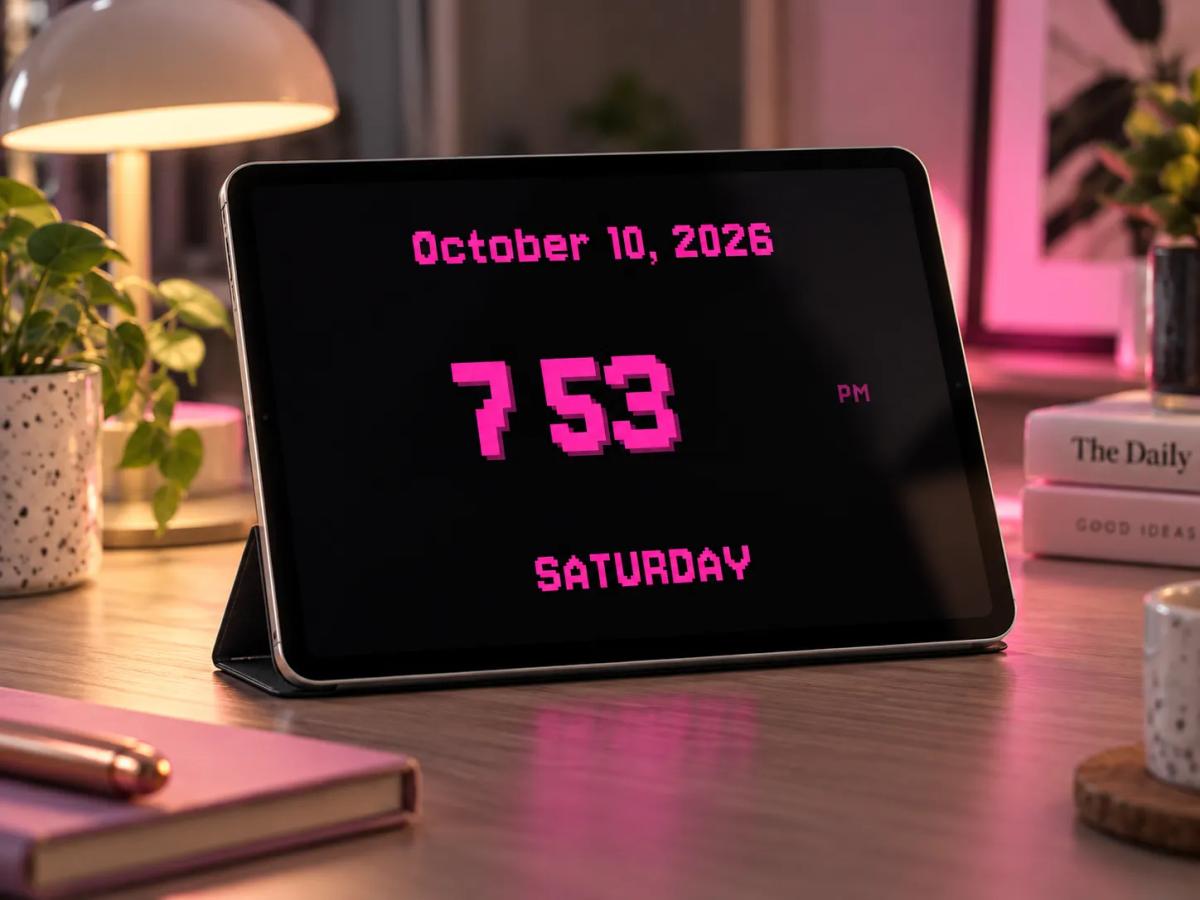
Chunky pixel digits with a drop shadow, straight out of an old video game. The full date sits on top and the weekday below, all on a black background.
Clock Hero Duo
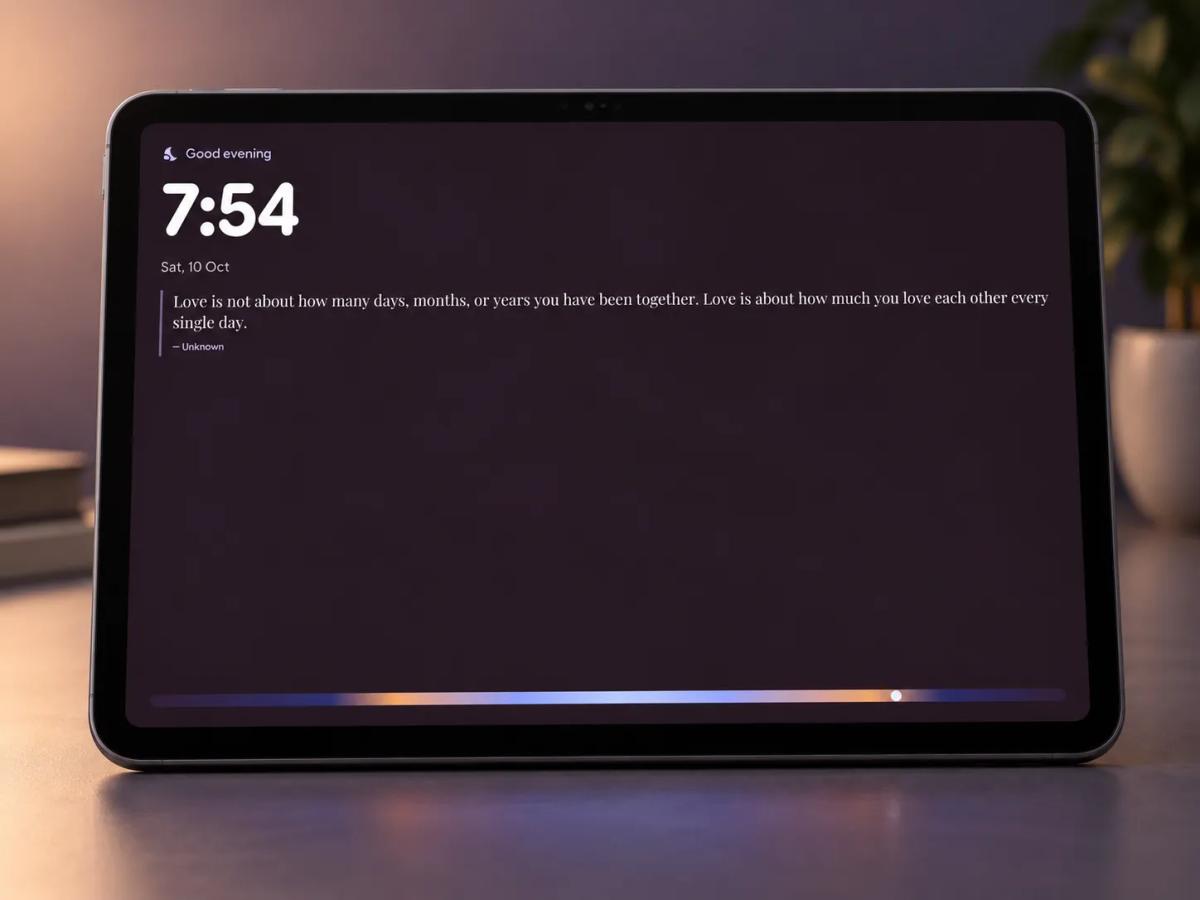
A big, bold clock with a greeting for the time of day above it (“Good evening”) and the date below. Under the date there’s a quote with its author. At the bottom, a color bar that shifts from night blue to sunset orange shows where you are in the day.
Sereno
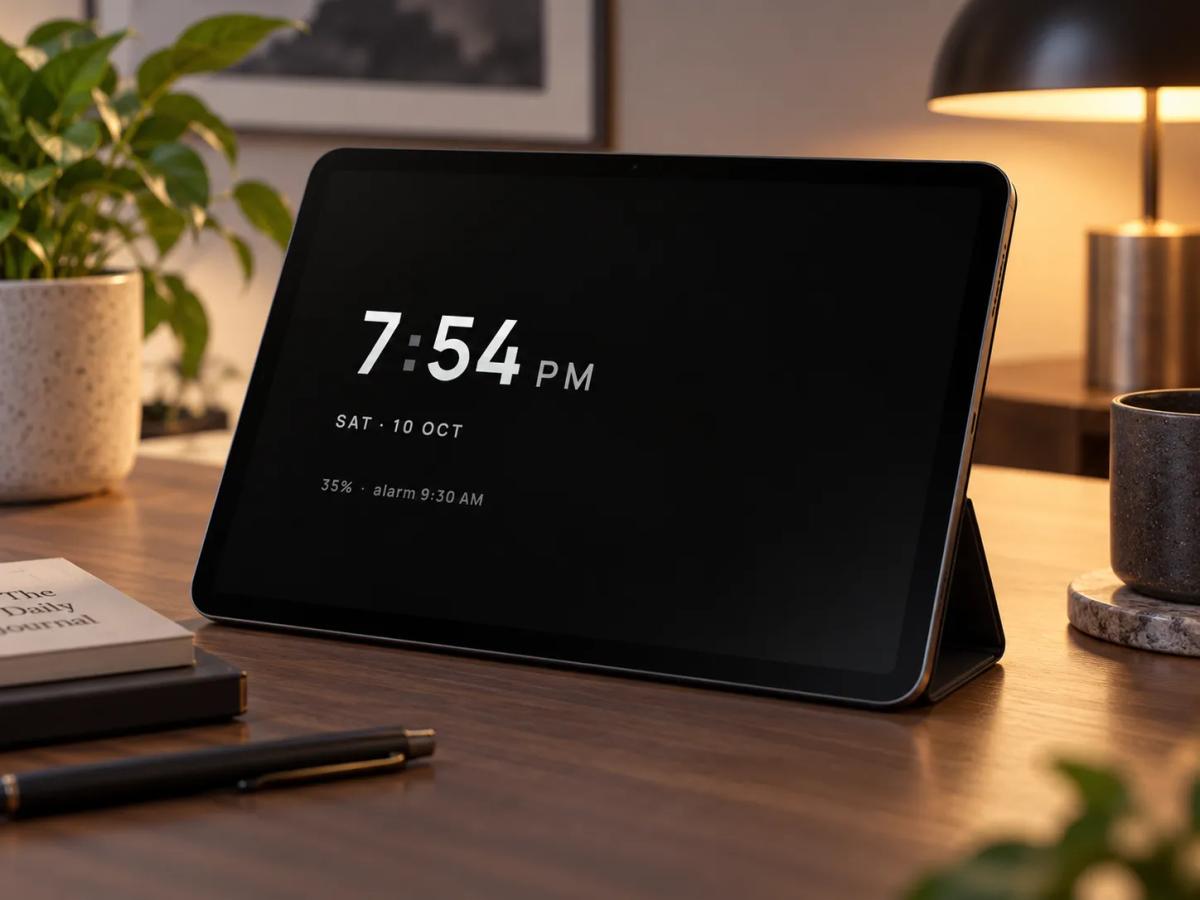
Large light gray digits on a pure black background, on the left side of the panel. Below them, the date in spaced capitals, then your battery level and next alarm in a dimmer gray. This is the one for the nightstand: almost nothing on screen is lit, which also suits OLED displays.
Want a different clock at different times of day? The Widget Rotator lets you automatically rotate widgets in a single panel, so one panel can cycle through several clocks.
Fullscreen Clocks: 15 Options for the Whole Screen
When you want only the time, StandBy Mode Pro has 15 fullscreen clocks. They fill the display, which makes them the easiest to read from bed. To use one, swipe between the layout groups to leave Duo and pick the clock you want.
A clock that stays on all night is exactly the case burn-in warnings are about. Turn on Advanced Burn-in Protection in the app’s settings: it shifts pixels in a subtle pattern every minute, which is how StandBy Mode avoids burn-in even with the clock on until morning.
Want a new clock in the app? Most of the app’s screens started as user suggestions, so leave yours on UserJot.
Turn your phone into a smart display while it charges.

About Karine Honma
My work moves between two great passions: Content Marketing and Copywriting. I’m driven by a constant desire to keep learning and by honesty in everything I do. I’m passionate about discovering the power of words and well-crafted content. I’ve collaborated with agile startups and agencies with large client portfolios. Each experience has brought me new learnings, new challenges, and a lot of satisfaction — and coffee ☕. Here you’ll get to follow a bit of my professional journey. But if you want to know who I really am — the creative, curious, and restless Karine — let’s grab a coffee, online or in person.