
Karine Honma
Android’s native screensaver (Dream/Daydream) with StandBy Mode: how to turn it on, what it shows, how it differs from Always On Display, and Screensaver vs. Quick Launch.
Plug your phone in tonight and watch what happens. The screen goes black, sits there for eight hours, and does... nothing. Almost nobody knows Android already has a fix for that.
It's called Dream mode. Some phones list it as Daydream, others as Screen saver, buried a few menus deep in Display settings. Turn it on, and a charging phone becomes a clock, a photo frame, or (with the right app) a full smart display.
StandBy Mode is an Android app that turns a charging phone or tablet into a smart display. It started in 2023, right after iOS 17 StandBy launched, and it has grown a long way past a single clock since then.
This piece covers what Dream mode is, how to switch it on, and why StandBy Mode, the android screensaver app most people end up installing, is worth adding to the mix.
Dream mode is Android's built-in screensaver: a real system feature, native to the OS. It kicks in while your phone charges or sits docked, keeping the screen lit instead of going dark.
It's been around since Android 4.2, back in 2012. Every phone since then has it: Samsung, Pixel, Motorola, whatever you're holding. The plumbing is baked into the OS itself, even if the manufacturer never bothers to mention it.
Under the hood, it runs on something called DreamService, the same system Android gives phone makers for building ambient displays. That's why it can host a full animated clock face instead of just... a black screen with a logo on it.
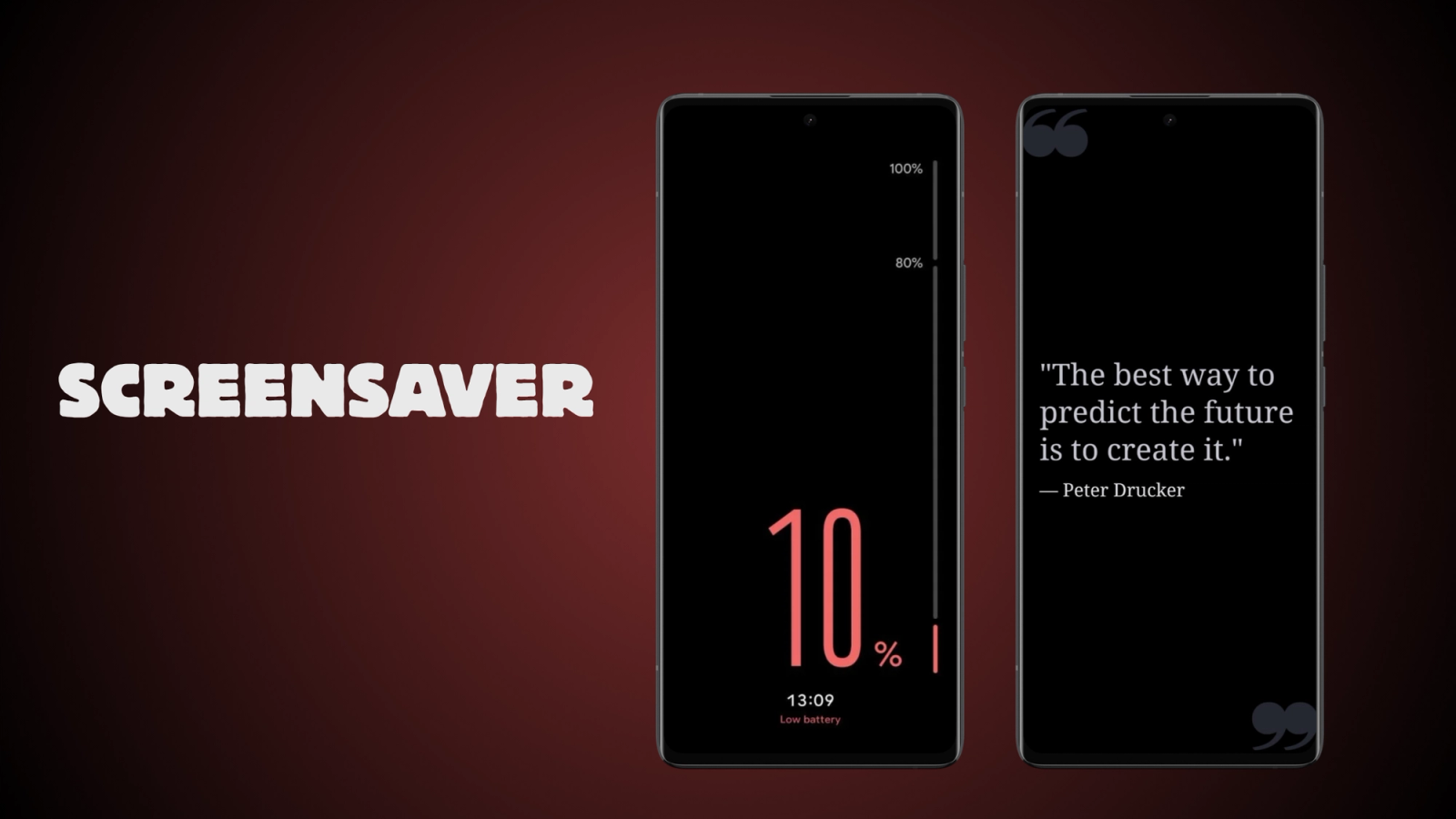
So what actually shows up on that screen? It depends entirely on which app you've picked to run the Dream. Stock Android keeps things simple: a clock, a photo slideshow, not much beyond that. A dedicated app opens the door to a lot more:
Here's the thing, though. Almost nobody stumbles onto this on their own. It's tucked under Settings, then Display, then Screen saver or Daydream, and most people have simply never had a reason to go looking.
Three steps, about a minute.
Can't find it anywhere? Search "screen saver" inside your Settings app directly. Some phone brands bury it deeper than stock Android does, for reasons only they understand. Still stuck, or unsure about a setting on your specific phone? Android's own getting started guide is a good place to check general device features.
Pick one, not both. StandBy Mode's Quick Launch and Android's own screensaver both wait for the same moment, your phone charging, so turning on both puts two things in charge of the same screen.
So when is the screensaver the better pick? Some phone manufacturers are aggressive about closing apps running in the background, and that can stop Quick Launch from firing reliably. If Quick Launch isn't consistent on your phone, switch to the native Android screensaver instead. Here's how to set it up.
No, and mixing the two up is an easy mistake to make.
Always On Display, or AOD, has one job: sip almost no battery while showing the bare minimum, time and maybe a notification icon, on a screen that's technically still locked. It runs whether you're plugged in or not.
Dream mode only shows up while you're charging or docked, and it knows it. Because it assumes the phone is already plugged into power, it doesn't hold back: full clock faces, photo slideshows, widgets stacked two or four at a time.
AOD is the battery-anxious cousin. Dream mode only shows up once that anxiety's already solved.
Yes, and it slots right into the system, no workaround required. Instead of picking Android's built-in Clock or Photos option, you just select StandBy Mode from that same Screen saver menu.
Once it's set, that's it. Plug your phone in, and StandBy Mode takes over on its own. No opening the app, no remembering to launch anything.
Once StandBy Mode takes that Dream slot, a plain clock isn't really the point anymore. The screensaver menu opens four ready-made categories, each built for a different kind of charging screen:
These screens run as they come. Screen Saver mode doesn't open up color, font, or layout customization the way StandBy Mode's own Charging Screen does elsewhere in the app. You pick a screen from the list, and that's what shows up.
The feature's been sitting inside Android for over a decade. Most people just never bothered, until there was finally something worth watching.
Here's what it looks like running, straight from the app's own demo.
Same menu, reverse direction. Settings, then Display, then Screen saver or Daydream. From there, switch the whole feature off, or tap the current selection and pick something else. None is usually an option too.
Swapping in a third-party app works exactly the same way. Select StandBy Mode from that list, and it's running immediately. No need to disable Daydream first, no extra steps.
Running this overnight? Our guide on Night Mode covers dimming the screen automatically after dark, and our post on screen burn-in explains how StandBy Mode keeps OLED panels safe during long charging sessions.
Android's had this feature since 2012. For most of that time, it's sat there quietly, doing nothing more exciting than a plain clock. It simply had nothing interesting to show.
StandBy Mode is basically that reason. Free to try, about a minute to set up, and once it's running, plugging your phone in stops being boring.
Want something added to it? Drop it on UserJot and vote on what others have suggested — that's how most of this app got built.

My work moves between two great passions: Content Marketing and Copywriting. I’m driven by a constant desire to keep learning and by honesty in everything I do. I’m passionate about discovering the power of words and well-crafted content. I’ve collaborated with agile startups and agencies with large client portfolios. Each experience has brought me new learnings, new challenges, and a lot of satisfaction — and coffee ☕. Here you’ll get to follow a bit of my professional journey. But if you want to know who I really am — the creative, curious, and restless Karine — let’s grab a coffee, online or in person.