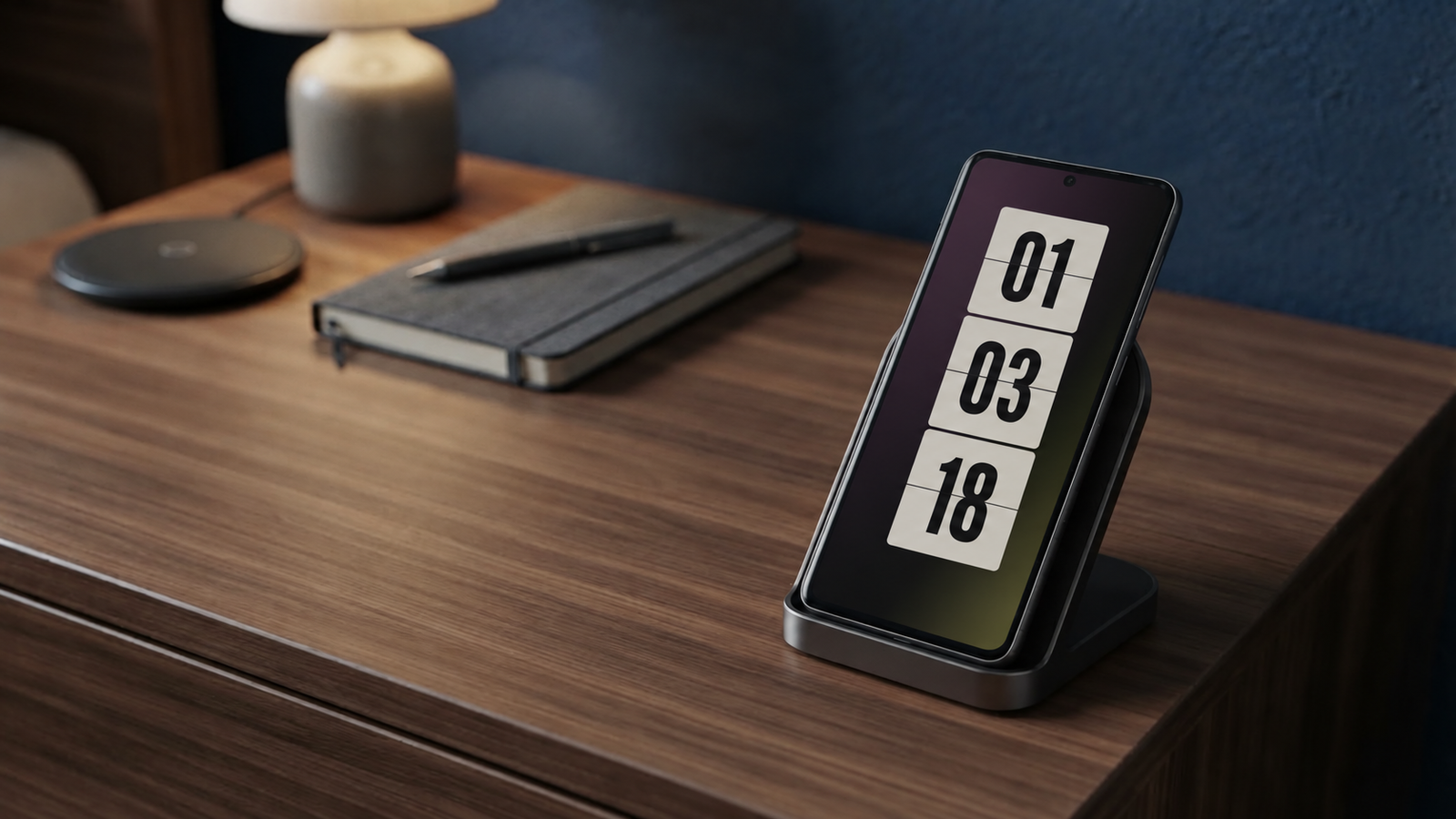

Karine Honma
Discover 5 Always-On Display settings to improve privacy, save battery, adjust brightness, control media, and make your Android easier to use.
The Always-On Display keeps the time and notifications visible on your lock screen without unlocking the phone, and it ships turned on with factory default settings that most people never touch.
That default is rarely the best setup, though: it shows more notification detail than it should, drains more battery than necessary, and misses a simple gesture that would solve most of the reason you check the screen all day.
Not every default Always-On Display setting is the safest or the most efficient one — some show more on the lock screen than they should, others just drain the battery for no reason.
It's worth reviewing each one before deciding what to change on your phone, and understanding what Always-On Display is and how it works makes it easier to see the reasoning behind every setting below. Here are the five worth checking first.
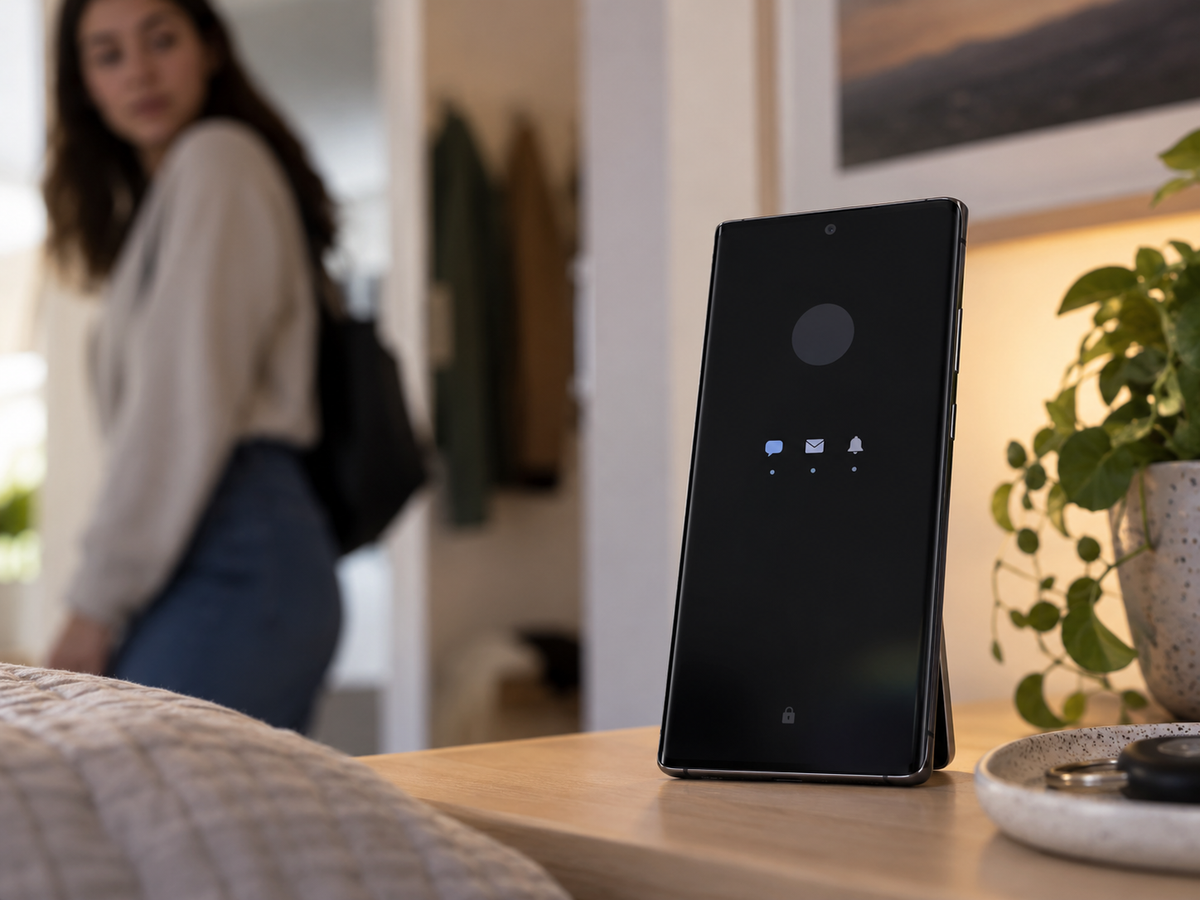
By default, Android shows the sender and the start of the message right on the lock screen and the Always-On Display — visible to anyone who glances at your phone. Turning this off keeps the notification icon but hides the content.
The path is Settings → Notifications → Advanced settings → "Hide content on the lock screen", confirmed on Samsung's official support page, available on most recent models, from the Galaxy S line to the A line.
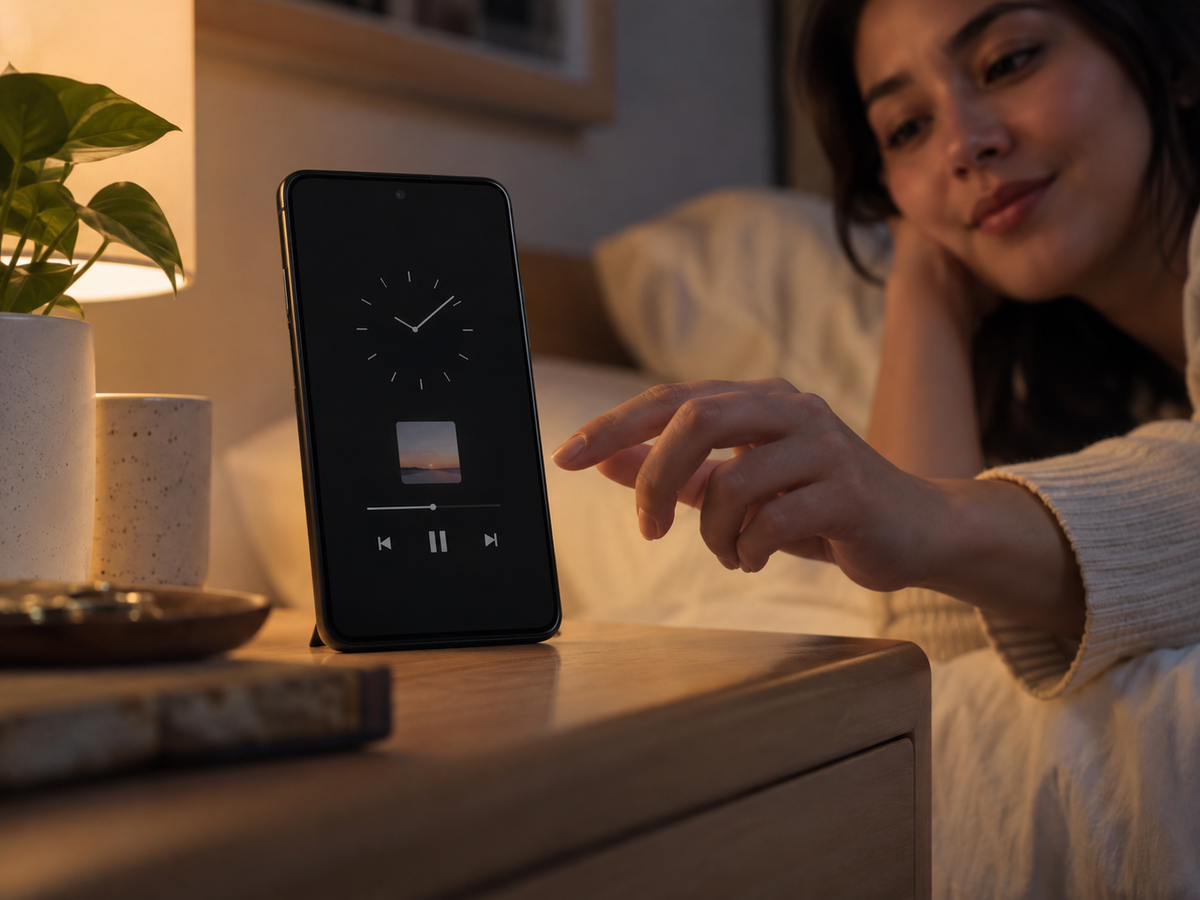
Anyone who already uses the Always-On Display to check the time but still unlocks the phone just to pause a song is missing a simple shortcut. Playback info — track, artist, controls — can show up right on the screen.
The path is Settings → Lock screen → tap the "Always On Display" text (not the toggle) → turn on "Show music information", as detailed on Samsung's official page for the feature. It works with any app that already shows up in the system's media control widget — with one notable exception, Samsung's own Voice Recorder, according to SamMobile.
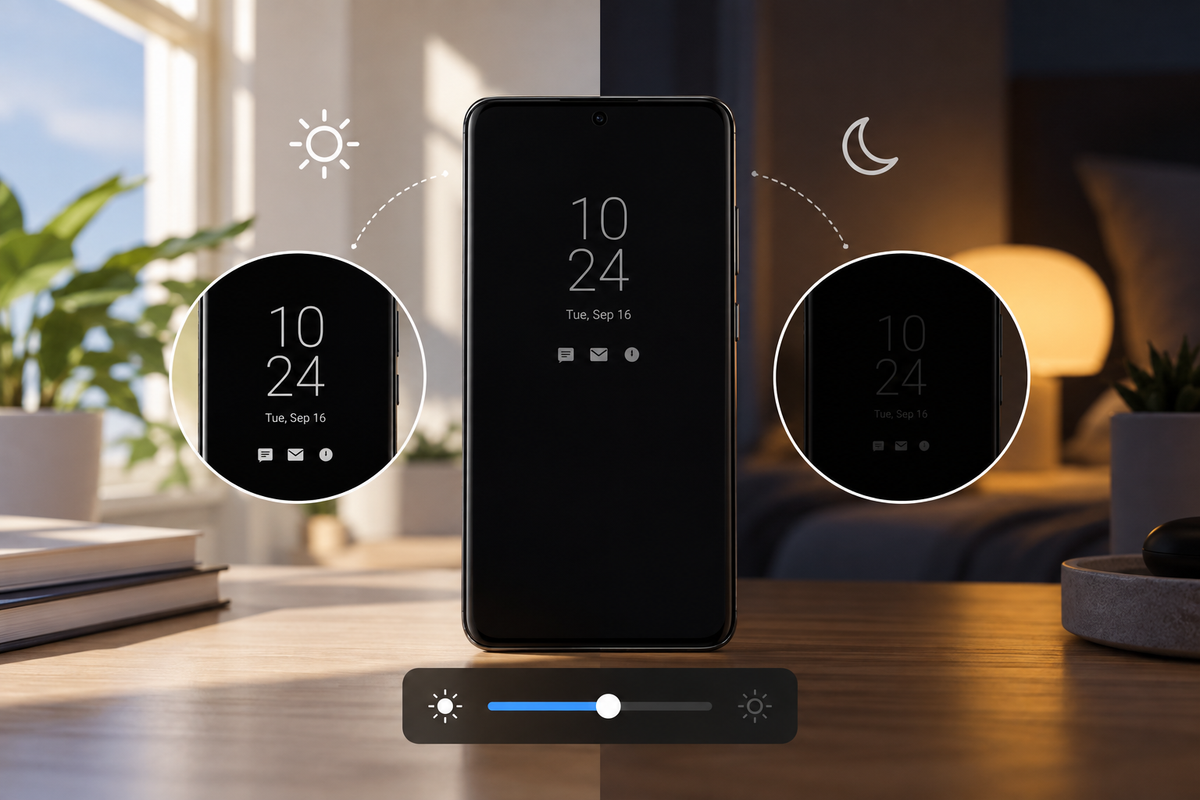
Always-On Display's automatic brightness doesn't always get it right — in inconsistent lighting, it can end up too bright at night or too dim during the day. Setting it manually gives direct control over that.
On versions up to One UI 6.0, auto brightness can be turned off in the AOD settings in favor of the manual slider, or you can simply double-tap the clock while AOD is showing to adjust it on the spot — a control that no longer exists starting with One UI 6.1, as Samsung confirms on its own support page.
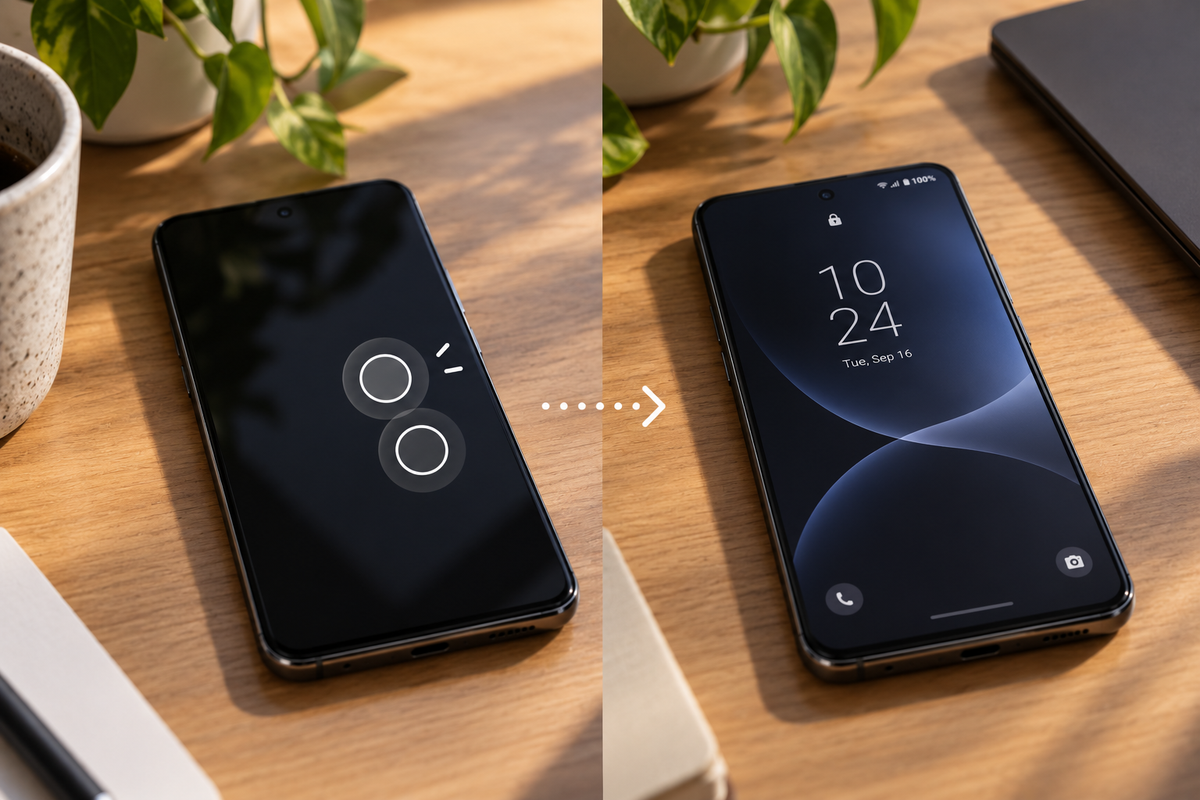
This isn't technically an Always-On Display setting, but it solves the same problem: checking the time or a notification without pressing the power button. With the gesture on, two taps on the screen wake the phone.
The path is Settings → Advanced features → Motions and gestures → turn on "Double tap to wake screen", listed by Samsung among the phone's Motions and gestures. It's a useful complement for anyone who'd rather keep AOD off most of the time but still wants a quick glance.
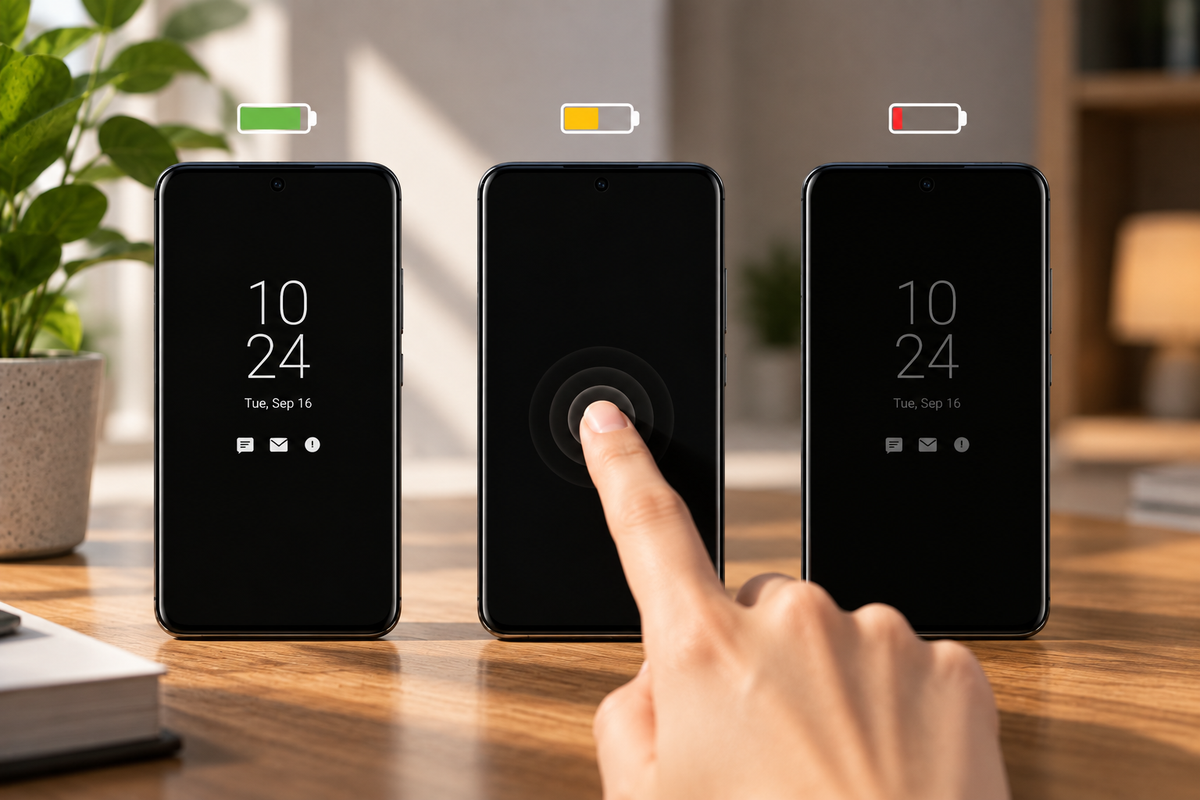
The standard Always-On Display ("Always" option) already uses little battery — under 1% per hour, the equivalent of 10% to 15% over a full day of use, according to SlashGear's roundup on Always-On Display battery usage, which combines the original figure Samsung published when the feature launched with more recent independent tests. But anyone looking to squeeze out more battery life has other display options to choose from besides the default continuous mode.
On Samsung, the "When to Show" menu groups five different ways to display AOD, each built for a different routine, as described on Samsung's official Always On Display page:
For anyone who prioritizes battery life over constant visibility, "Tap to Show" tends to be the most direct middle ground: the information stays a tap away, but it stops draining battery the whole time no one's looking at the screen.
These five settings alone make the native Always-On Display safer and more efficient, with nothing to install.
For anyone who wants to go further, StandBy Mode Pro handles most of the work on its own — just flip the switch in the app's settings and choose between automatic scheduling or a fixed time to turn on Night Mode, without manually adjusting brightness or tint every night.
The app also solves a problem the native AOD doesn't: the display shifts its elements in a slight pattern every minute, even during hours of continuous use, which is what keeps it from causing burn-in.
Want something added to the app? Leave your suggestion on UserJot (standbymodepro.userjot.com) — that's how most of this app got built.

My work moves between two great passions: Content Marketing and Copywriting. I’m driven by a constant desire to keep learning and by honesty in everything I do. I’m passionate about discovering the power of words and well-crafted content. I’ve collaborated with agile startups and agencies with large client portfolios. Each experience has brought me new learnings, new challenges, and a lot of satisfaction — and coffee ☕. Here you’ll get to follow a bit of my professional journey. But if you want to know who I really am — the creative, curious, and restless Karine — let’s grab a coffee, online or in person.